Malware Removal Instructions

  • Subscribe to our RSS feed.
  • Twitter
  • StumbleUpon
  • Reddit
  • Facebook
  • Digg
Showing posts with label Security Advisories. Show all posts

Wednesday, 6 November 2013

Is someone watching you through your webcam?

Posted on 08:13 by Unknown
Sounds like something from a sci-fi movie or a far-fetched thriller doesn’t it? Clicking your mouse just a couple of times activates your computer or laptop’s webcam. So far so convenient. But what the majority of us don’t realize is that while we’re busy working or surfing the web, someone could be watching us.


The curse of the RAT

You’re probably thinking this is already creepy enough without me throwing rats into the mix but a RAT (Remote Access Tool) is the software that hackers use when they want to remotely hack into a computer. RATs are actually used legally by computer engineers to remotely troubleshoot issues on someone else’s PC. The difference is that the person with the tech issue asked the engineer to fix their problem. Hackers, clearly, exploit this technology for their own means. Put simply if you’ve been hacked and your webcam is activated, you could be under surveillance. RAT tools are usually divided into two groups: commercial/free and malicious. Your antivirus software may detect some of the commercial tools as potentially dangerous which is a good thing to know because someone might indeed use them they way they should not be used. Malware does everything to hide itself, so obviously it won't be visible on your screen. If the webcam is being run by cleverly designed malware you may never see webcam sofware running on your computer.

How can I tell if the webcam has been hacked?

Usually, when the webcam goes on, the light should go on, too. However, certain malicious programs that were designed to activate your webcam and spy on you may turn on your camera without turning on the light. This is especially true if the light is under the control of webcam software. So, if you suspect that someone might be watching you through your built-in webcam for example, scan your computer with anti-malware software. Spybot is usually a good choice. SUPERAntispyware and Malwarebytes may be useful as well.

How does a RAT get onto my PC?

The way RAT software installs itself on your machine is much like any other piece of malware. You’ll be enticed into clicking on a link, opening an attachment in an email, downloading a seemingly innocuous piece of software or visiting either an unscrupulous website or one that has been hacked.

The RAT, a little like its namesake sneaks onto your computer and just like that a hacker has remote access to your machine - and your webcam.

How do I stop my webcam from being hacked?

Many people tell you to address the problem by covering your webcam’s lens with a piece of paper; however doesn’t this seem like an ostrich-like reaction? The proverbial burying your head in the sand. If your webcam has been hacked, so too has your PC and that can lead to real problems.

The trick therefore is to prevent yourself from being hacked in the first place and there are a number of sensible steps you can take to protect yourself.

Install anti-malware software and a two-way firewall

This really is the basic protection for any PC. Make sure your anti-malware is the latest version and that you run it frequently. A good anti-malware will find and remove malware and viruses. A two-way firewall oversees what traffic is inbound and outbound on your machine.

Watch what you’re clicking

We’ve all seen those fun free icons or wallpapers or been tempted by free downloads but hackers embed their malware code into these and use them to install their malware - or RATs. Therefore make sure you trust the site you are downloading from. Also be wary of links in social media sites such as Facebook and Twitter that have been shortened so you can’t tell where they’re linking to.

Be wary of so-called remote IT support companies

Getting emails or phone calls from someone telling you that you have an issue that needs to be fixed on your computer? What’s that you say, you can fix it remotely? No thank you very much!

Make sure you use a secure Wi-Fi network

Any hacker worth his salt can hack into an unsecure wireless connection with just a laptop, an antenna and the right (easy-to-find) software. Protect yourself by choosing a strong and abstract password – and change it on a regular basis.

Disable Windows Remote Access

One way to make your computer less vulnerable is by disabling Windows Remote Assistance and Remote Desktop. Although, as discussed, the majority of RATs hack your system through links and attachments this is still a sensible step to take.

Follow the steps below to disable Remote Assistance and Remote Desktop for Windows 7 and Windows 8:

1. Click Start and go to Computer.

2. Right click on Computer and choose Properties.

3. On the left you’ll see Remote Settings. Click it.

4. Go to the Remote tab and un-tick Allow Remote Assistance connections to this computer.

5. Then click Don’t allow connections to this computer. Click OK.

Protect your computer, your files and your privacy and don’t fall victim to having your webcam hacked.
Read More
Posted in Security Advisories | No comments

Friday, 19 July 2013

Best PUP and Adware prevention software

Posted on 10:46 by Unknown
We’ve probably all been there; we’re innocently surfing the web and suddenly we’re presented with a link to a website or an advert that looks like it’s just too good to ignore. We click... and then suddenly we find ourselves bombarded with a veritable volley of dubious looking pop up adverts, pop up surveys or have been redirected to websites of a somewhat questionable nature.

Likewise, again, I’m sure I’m not alone when I say that I’ve installed a tempting looking free download and then boom! - my computer is running like it’s 1000 years old. And you know why? Because I’ve inadvertently also downloaded a program which is now monitoring my every online move.

Scary stuff indeed so say hello to PUP (Potentially Unwanted Program) and adware – the internet software that has been designed to not only be irritating but that can be downright dangerous too.

What are PUP and Adware?


PUP is sneaky and very often it weasels its way onto your PC without your knowledge or your consent. Usually, PUPs come bundled with popular software downloads and freeware. Examples of PUP can be toolbars, custom search engine providers and other add-ons. When you’re online it will run in the background surreptitiously spying on you and gathering data about your internet browsing habits.

Whilst PUPs are annoying and sometimes difficult to get rid of, adware is slightly different and slightly less menacing. Adware’s main purpose is to display adverts in the form of pop-up windows and banners, on your computer. Whilst some of these ads are genuinely advertising real products, many of them will include links to websites. Websites you probably don’t want to visit in the first place.

Like PUP, a lot of adware tracks which sites you are visiting and then relays that information back to its creator so that they can send you more dedicated advertising. It’s fair to say that whilst some people don't mind this practice others find it highly intrusive.

The biggest thing to bear in mind about PUP and adware is thinking whether or not you wish to have that type of program operating on your PC. Really it all comes down to how you feel about online privacy and security. Or whether you can be bothered to have to close pop-up adverts every few seconds! If you don’t like it and you don’t want it it falls into the category of unwanted software – and you need to know how to prevent and get rid of it.

Getting Rid of PUP and Adware


It doesn’t matter whether adware is slowing your computer down or leaving you vulnerable to attack by identity fraudsters; adware is not called malware for nothing. The reason that your PC will be running so slowly if you’ve downloaded one of these programs is because PUP and adware are using up your system’s resources because they are constantly sending data to their servers.

As I said, in the majority of cases PUP and adware is bundled with other programs – such as freeware - that you’ve downloaded and whilst it is fair to say that there is often some acknowledgment of their existence in the software's licensing agreement it is usually hidden within reams of complicated (and boring) wording – which means that most of us don't read it. The thing is that whilst some people see it as a fair deal: I get free software but I also have to put up with being spied upon – a lot more people object to it.

This isn’t the only way that malware finds its way onto your computer as simply browsing the web can do it too. A lot of the time just clicking on a fake dialog box or pop up window is enough to end up with you having PUPe or adware downloaded onto your PC. And of course these boxes and windows will make it as hard as possible for you to refuse with so-called urgent messages or offers that you can’t refuse. Many of the windows will usually give you the option of clicking ‘yes’ or ‘no’ however simply clicking the window – whichever you choose - will end in malware being downloaded onto your machine. The rule: close the window using the little red ‘x’.

Preventing PUP and Adware


First and the most important thing to do is install reputable PUP and Adware protection software. Unfortunately, most PUPs are not detected even by the most popular anti-virus programs. The reason is simple, PUP is not technically malware. But it's potentially dangerous and annoying. Adware detection ratio is also low, however, better than PUP. Thankfully, there are programs that fill in this gap, for example Spybot, Malwarebytes and SUPERAntispyware.

Often, being the victim of a malware attack can be our own fault. The things to look out for include:
  • Watch what you’re downloading – think to yourself whether you really need that software or program before you click ‘ok’. Check the name of the programmer and use a search engine to do some research if you’ve never heard of them or their technology.
  • Whilst ActiveX is fine when a reputable site uses it, it is also highly prized by hackers as a means for installing spyware without you knowing about it. To be on the safe side turn it off in your browser preferences. If you need to turn it on when visiting a site you trust you can do so easily.
  • It might be tedious but read those freeware licensing agreements carefully and check the wording for anything that suggests that data capturing might be involved.
  • Don’t fall victim to anti-spyware scams – they’re all over the web and despite disguising themselves as genuine security software they will either do nothing to protect your computer – or in some cases will install even more malware on it. You can usually tell if one is rogue because they will offer to run a free scan on your PC – and of course they’ll find loads of problems. And then ask you to buy their software.
  • Don’t click on adverts. They might look colorful and flashy but these should be a red flag to a bull and you will be highly likely to end up being monitored by someone.
It looks like PUP and adware are here to stay but it is in your hands as to what malicious software can find its way on to your PC.
Read More
Posted in Security Advisories | No comments

Wednesday, 26 June 2013

PC Health Boost Review and Removal Instructions

Posted on 08:37 by Unknown
A few days ago I was giving my laptop its regular once over and making sure that it was in optimal working order by getting rid of unwanted software; you know the type – adware and its annoying pop-up windows, useless toolbars and other assorted malware and all of a sudden I was shown a pop-up advert for something called PC Health Boost.

I have to admit, upon first glance I was quite impressed – it looks the part and it says it’s been developed by ‘a Microsoft Partner’. It also states that “We highly recommend this download" although to be fair it probably goes without saying that if you’re the developer of a download then of course you highly recommend it! However look a little closer and you’ll see that despite it looking like the real deal, PC Health Boost is not an actual Microsoft product, although you could be forgiven for thinking it is.


This put me on my guard and I have to admit that I am not a huge fan of registry cleaners anyway because they often actually damage your computer instead of cleaning it as they claim. Besides, it's not free, costs about $30. A small price to pay for having a clean computer you might think; well it’s not such a great deal when you consider that there are plenty of free programs out there that do a good as, if not better job than these sorts of registry cleaners.

As the software is a registry cleaner this means that once you’ve installed it it will then scan your PC for ‘problems’. And guess what – it will tell you that you have literally hundreds of issues which, naturally, the full program which you need to purchase, will be able to take care of.

I was intrigued however and decided to test it using an old PC that I don’t use anymore. I first ran two other reputable cleaning software programs before installing PC HealthBoost so I could be pretty sure that my computer was problem free. I then ran PC Health Boost which told me that my computer had a whopping total of 54 issues. Not that bad after all. I was hoping to find at least 100+ issues.

I looked a little closer at these ‘issues’ and worked out how they were unearthed.

PC Health Boost works by searching for run lists which are lists that you’ve recently opened in the different software programs installed on your PC. If you move a file in one of these programs, this counts as an ‘error’. Like most people I use a number of programs that create files and I move them on my computer to make it easier to find and use them. So really, this is not an error, it’s simply an out of date ‘to-do list’. It also adds so-called issues with programs such as Microsoft Visual Studio 8 and Microsoft SQL, which you or I don’t use but they work in conjunction with other programs. It’s not a good idea to mess around with these as you could cause issues which is exactly why I don’t like registry cleaners because they can do untold damage by fixing what they perceive as a problem – when no such thing exists.

To conclude, despite the use of the words ‘healt’ and ‘boost’ in the name, PC Health Boost is a simple registry cleaner; it doesn’t ‘boost’ anything and it won’t speed anything up – and it might delete files that you need and cause real issues. If you’re concerned about malware, bugs and issues on your PC you are far better off downloading a well-known cleaner from the internet.

You’ve installed PC Health Boost and are worried it might cause problems? Uninstall it by going to your Start menu, go to All Programs, locate the PC Health Boost icon and click Uninstall. After that you may want to run a regular cleaner to make sure there’s nothing nasty lurking on your PC’s registry, etc. Very often, it comes bundled with adware and other unwanted applications, for instance, Search Conduit, so there's a good chance you got some of these as well.

Written by Michael Kaur, http://deletemalware.blogspot.com


PC Health Boost removal instructions:

1. First of all, download recommended anti-malware software and run a full system scan. It will detect and remove related adware and spyware from your computer. You may then follow the manual removal instructions below to remove the leftover traces of PC Health Boost and related adware. Hopefully you won't have to do that.


2. Remove PC Health Boost application from your computer using the Add/Remove Programs control panel (Windows XP) or Uninstall a program control panel (Windows 7 and Windows 8).

Go to the Start Menu. Select Control Panel → Add/Remove Programs.
If you are using Windows Vista or Windows 7, select Control Panel → Uninstall a Program.


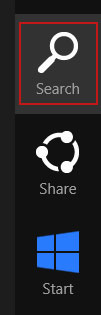
If you are using Windows 8, simply drag your mouse pointer to the right edge of the screen, select Search from the list and search for "control panel".


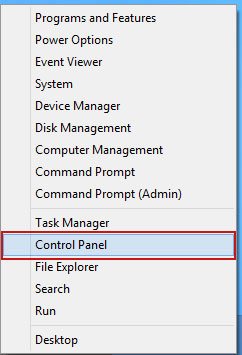
Or you can right-click on a bottom left hot corner (formerly known as the Start button) and select Control panel from there.


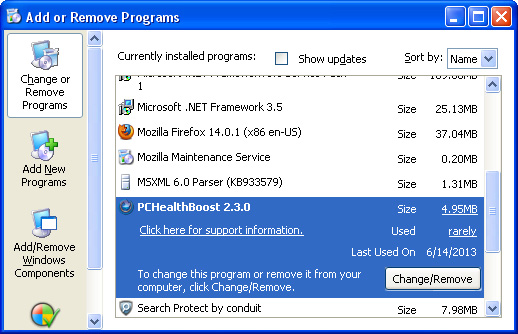
3. When the Add/Remove Programs or the Uninstall a Program screen is displayed, scroll through the list of currently installed programs and remove PC Health Boost.


If you are using Windows Vista, Windows 7 or Windows 8, click Uninstall up near the top of that window. When you're done, please close the Control Panel screen.

Read More
Posted in Security Advisories | No comments

Friday, 21 June 2013

Is it safe to use a VPN service to change IP? How to find the right one for you?

Posted on 08:33 by Unknown
Chances are that you don’t use a VPN – a Virtual Private Network – and may not see the point in having one but the fact is that a VPN has a number of benefits and you really should consider using one, especially if you have any concerns about your privacy when you’re browsing the internet.

Selecting which VPN service is right for you can seem a little tricky at first as there are so many providers on the market - and they are all battling it out to get your business. If you’re not sure where to start looking for the right VPN for you, read on as we take a look at the things you need to know.

First of all, what is a VPN?


A VPN refers to a group of computers which are connected together via the internet. If you’re a business you can connect to a remote data center via your VPN and if you are a home user you can use it to connect to a network even if you’re not on the same local area network (usually abbreviated to LAN). A VPN is also hugely beneficial as it will secure and encrypt your data if you are using a public network – for example if you’re using a PC in your local library or your laptop in a coffee shop.

Connecting to a VPN is simple; you will either have a VPN client installed on your computer, which you launch when you want to connect, or you may need to log in to the provider’s website. Once you have launched or logged in your PC and the VPN’s server will verify each other and as soon as they recognize each other as being genuine your computer's internet connection and thus your data and communication will be securely encrypted so that no third party can access it.

A VPN is multi-functional too as not only will it allow you to safely connect to the internet but it will also allow you to watch television programs that are being aired abroad.

What can your VPN Do for You?


As we’ve seen a VPN can increase your security and ensure that your data isn’t been viewed by unscrupulous cyber criminals, and it enables you to access information when you’re not physically connected to a certain network, however there are different ways that you can use your VPN.

Whether you’re a student, an employee or you’re self-employed you may want to use a VPN so that you can always connect to a network no matter where you are. If you are security conscious and want to make sure that no one is accessing your data when you’re using public Wi-Fi a VPN is invaluable for protecting your privacy.

VPNs are also a must if you download a lot of torrents. Whether they are legal or illegal you don’t want to end up in trouble with the authorities or having to pay a fine just because you wanted to watch the latest episode of your favorite TV show.

Even if you’re not downloading torrents and you just want to watch a live sporting event or you want to view a program as it airs instead of waiting for it to be made available online (thus avoiding spoilers!) a VPN will allow you to do so. It will also let you listen to internet radio that may only be available in certain locations as well as giving you access to web based services or resources that are limited to a certain country or region.

Regardless of how important downloading torrents or watching television programs is to you, a VPN is a must when you’re working or browsing the internet on a public or unknown network. No matter whether you’re in an airport, a hotel or a café or restaurant if you don’t know that network, how do you know who also has access to it – and potentially your data. Even just checking your Facebook or Twitter account on a public network can put you at risk.

Choosing the Right VPN Service that Takes Anonymity Seriously


It really depends what you want to use your VPN for. Some VPNs are best for light usage, others are better if you do a lot of downloading and want to protect yourself whilst doing so and others still are aimed at avoiding the regional restrictions that some companies put on their apps and services.

So what are the things you need to consider when choosing the right VPN for your needs?

Protocol: the first thing you’ll probably spot is that you keep coming up against confusing sounding abbreviations such as SSL/TLS (also called OpenVPN Support,) PPTP, IPSec and L2TP – to name but a few. These are all VPN types and they will all give you a secure network connection however the most widely used type of VPN is SSL. Each type has pros and cons, however if you’re a regular home user you don’t need to get too bogged down in the fine details.

Where are the servers and exits: these depend on what you’re using your VPN for as well as where your server is and the locations of the ‘exits’. Put simply, what this means is that if you’re looking for a VPN so you can watch live television and you’re living in Canada, you need to check and see that the VPN provider has servers in Canada too. If you want a VPN so that you have extra privacy when you’re downloading torrents it might be an idea to choose a provider who is not based in the same country as you. It is also wise to ensure that your VPN provider has servers in a number of locations.

Logging data: connecting to a VPN means that you are entrusting the provider with your data and whilst it is true that you are protecting that data from people outside your network your information could still be logged by the service provider or even other systems that are using the same VPN. If you are concerned about this read all the small print and make sure you understand what your VPN provider’s policies regarding logging are. If the company doesn’t actually keep logs it’s not such a big deal which country they are situated in.

Protection against malware and spyware: don’t make the mistake of thinking that just because you’re using a VPN you’re immune to attacks by malware and viruses. Continue to use HTTPS whenever you can and remain vigilant when downloading torrents, programs or software. If you are concerned however, do some research because some VPNs also come packaged with anti-malware and anti-spyware programs to give you extra peace of mind.

Mobile applications: whether you’re paying for your VPN or not it makes sense to get as much use from it as possible so make sure that you can use it across your range of devices, whether it’s your desktop PC or a smartphone. The majority of the biggest VPN providers have both desktop and mobile security which is far less hassle than having different VPNs for each of your phones, tablets or laptops.

The cost: there is a wide range of both free and paid-for VPNs out there so make sure you do your research, especially before buying a service. There are often quite substantial differences between the two types too:

Whilst a free VPN is perfectly adequate for light use or if you’re traveling and want heightened security, these services are more likely to record your online activity, so if privacy is the main reason for using a VPN, you might want to consider spending a little money instead. Free services also often have adware bundled in with them so you will likely start seeing those annoying little pop-up ads when you’re online too. They often also have a lower number of exit locations and are not as concerned with your privacy. A few good free VPN services are:
  • SecurityKiss
  • CyberGhost
  • ItsHidden
  • TunnelBear
A paid for VPN is usually a lot more dedicated to your privacy and is unlikely to bombard you with adverts. The thing to look at here, if it is of importance to you, is whether or not they log your activity, as this does depend on the provider. If you’re going to pay for your VPN opt for a company who is offering a free trial – many of them do – so you can see how well you get along with it before handing over any money.

Read More
Posted in Security Advisories | No comments

Friday, 31 May 2013

Protecting Against Rootkits with RKhunter (Rootkit Hunter)

Posted on 11:50 by Unknown
When operating a Linux server, one of your primary objectives is to run a secure and healthy server. A hacker has several ways to compromise a server. One of these methods would be by installing a rootkit to gain easy access to your Linux server. A rootkit is design to hide malicious processes and files within your server which allows hackers to connect and use your server for illicit activities such has phishing, botnet controller, sending DDoS attacks, etc. Scanning regularly for rootkit is recommended to prevent further detrimental activities on the server. There are several rootkit scanners available for download but today we will focus on rkhunter, short for: The Rootkit Hunter project.

Rkhunter is a Unix-based tool designed to scan machines and/or servers for rootkits, backdoors, etc. It does this by running multiple tests which compare the local data with several signature databases. This tool has been designed to be fairly easy to use and can run tests in bulk or separately. The Rootkit Hunter project was initially created by Michael Boelen in 2006 but has been since taken over by a 3 person development team.

Rkhunter is a fast, complete and easy to use solution to mitigate rootkit and malware threats. Keep in mind that rkhunter is a passive rootkit scanner (it needs to be scheduled or run manually), which means that it won’t detect rootkit on the fly and it should not be intended as a preventive counter-measure in your Security Strategy. The Rootkit Hunter project should only be used as a post-incident tool to detect a breach of security that has already occurred. It is recommended to run often as part of a comprehensive and exhaustive security strategy. Rkhunter needs to be run in bash and with root access privileges. After each scan, scheduled or not, you will receive a comprehensive and detailed log result.

Rkhunter can be installed within minutes. In the following section, you will be provided with a simple step by step tutorial to install and then run your first scan of rkhunter. The test has been run from a GloboTech dedicated server located in Canada. Afterward, you will learn how-to run custom rootkit scans using this tool.

Download and Install RKHunter

cd /usr/src
wget http://downloads.sourceforge.net/project/rkhunter/rkhunter/1.4.0/rkhunter-1.4.0.tar.gz
tar zxvf rkhunter-1.4.0.tar.gz
cd rkhunter-1.4.0/
./installer.sh --layout default --install

Update RKHunter's Definition Database

Type “rkhunter --update “ to make sure your rkhunter database is up to date.

Run RKHunter for the first time

Type “ rkhunter -c --sk “ to run rkhunter for the first time. This will launch a manual scan and by adding “ --sk “ this will skip the keypress requirements after each section is done scanning. The “ -c“ flag will run.

This operation will result into a long log file with a summary of the scan at the end. Here is a sample of this output:

System checks summary
=====================

File properties checks...
Files checked: 137
Suspect files: 0

Rootkit checks...
Rootkits checked: 312
Possible rootkits: 0

Applications checks...
Applications checked: 7
Suspect applications: 0

The system checks took: 33 seconds

All results have been written to the log file (/var/log/rkhunter.log)

This is pretty straight forward to understand. By example, it’s reporting that it has scanned your system against 312 known rootkits and has found no existing threat.

Available tests options

Rkhunter offers several test options while launching a scan. Here is a list of the most popular tests with their definitions:

additional_rkts => possible_rkt_files possible_rkt_strings
group_accounts => group_changes passwd_changes
local_host => filesystem group_changes passwd_changes startup_malware system_configs
malware => deleted_files hidden_procs other_malware running_procs suspscan
network => hidden_ports packet_cap_apps ports promisc
os_specific => avail_modules loaded_modules
possible_rkts => possible_rkt_files possible_rkt_strings
properties => attributes hashes immutable scripts
rootkits => avail_modules deleted_files hidden_procs known_rkts loaded_modules other_malware possible_rkt_files possible_rkt_strings running_procs suspscan trojans
shared_libs => shared_libs_path
startup_files => startup_malware
system_commands => attributes hashes immutable scripts shared_libs_path strings

You can run concurrent tests with the following command: rkhunter --enable

By example if you would like to run a scan for the following test “malware, rootkits, additional_rkts, startup_files, other_malware”, you would type this command: rkhunter --enable malware,rootkits,additional_rkts,startup_files,other_malware --sk


Even if you are taking preventative measures not to have your server hacked, scanning your server with rkhunter is a good way to know quickly if your server has been comprised. By adding a cronjob to automate the scan on a daily basis with the results emailed to you, you can know and take action immediately when you are notified of a threat.

For further information, please refer yourself to the homepage of “The Rookit Hunter project” at following address: http://sourceforge.net/apps/trac/rkhunter/wiki/MPRKH#Contents
Read More
Posted in Security Advisories | No comments

Sunday, 7 April 2013

Remove Optimizer Pro (Uninstall Guide)

Posted on 10:58 by Unknown
Optimizer Pro is a PC maintenance suite that promises to speed up your computer even if you got a brand new one. Basically, it's just another system optimization and clean up application that pushes features and tools which are very often available for free, for instance, removing Windows temporary files, clearing browsing history, etc. All these tasks can be done without buying a third party optimization software. Or you can always find free alternatives that do the same thing, have real depth and offer truly useful advice. It wouldn't even bother me but I got a few emails from my readers asking whether Optimizer Pro is a genuine application or not and how to remove it? One of my readers complained that this application comes up every time he loads up his computer. It then does a quick system scan and finds thousands of items that may slow his computer. But the worse part is that it can't be uninstall through Control Panel.


OK, so I spent a couple of hours testing this application on my test machine and what can I say... Well, it's somewhere between black hat and black hat. Not necessarily misleading or malicious but hardly useful at the same time. I like to keep on top of junk that lingers around my computer but honestly, Optimizer Pro won't improve performance much if at all. I mean it might help a little but it doesn't include tools that you won't find elsewhere. It is largely snake oil laced with the feel good factor for me. And I don't want to be harsh or anything, but honestly, most of the fixes aren't worth paying 30 bucks or more. Another thing that worries me is the way this application is advertised and distributed. It either comes bundled with freeware or using very misleading ads that honestly remind me those that were used by scammers pushing rogue security products. It's sad that such huge ad networks like Yahoo! and AppNexus allow these misleading ads show up on various websites, including very popular ones.

Oh well, such ethical issues are rarely taken seriously, so instead of complaining, let's return to the main question which is how to remove Optimizer Pro from your computer if it doesn't have a proper uninstaller? First of all, go through the list of currently installed applications and make sure it's not there. Order them by date installed and look for Optimizer Pro v3.0 or something similar. If you can't find anything, then it's either listed as a completely different application or it came bundled with software that you installed recently. Removing the culprit will likely remove the offending application as well.

Do you have something to say about dealing with Optimizer Pro? Post your comment or question below. Good luck and be safe online!

Written by Michael Kaur, http://deletemalware.blogspot.com


Optimizer Pro removal instructions:

1. First of all, download recommended anti-malware software and run a full system scan. It will detect and remove this infection from your computer. You may then follow the manual removal instructions below to remove the leftover traces of this browser hijacker. Hopefully you won't have to do that.


2. Uninstall Optimizer Pro from your computer using the Add/Remove Programs control panel (Windows XP) or Uninstall a program control panel (Windows 7 and Windows 8).

Go to the Start Menu. Select Control Panel → Add/Remove Programs.
If you are using Windows Vista or Windows 7, select Control Panel → Uninstall a Program.


If you are using Windows 8, simply drag your mouse pointer to the right edge of the screen, select Search from the list and search for "control panel".


Or you can right-click on a bottom left hot corner (formerly known as the Start button) and select Control panel from there.


3. When the Add/Remove Programs or the Uninstall a Program screen is displayed, scroll through the list of currently installed programs and remove Optimizer Pro.


Simply select each application and click Remove. If you are using Windows Vista, Windows 7 or Windows 8, click Uninstall up near the top of that window. When you're done, please close the Control Panel screen.

If you can't remove it through Control Panel, then you will have to remove it manually.
  • C:\Program files\Optimizer Pro\
  • C:\Documents and Settings\All Users\Start menu\Programs\Optimizer Pro\
Read More
Posted in Security Advisories | No comments

Saturday, 30 March 2013

False Positive: Ikarus and Comodo detecting TDSSKiller as a Trojan horse

Posted on 05:19 by Unknown
This awkward moment when you realize that your favorite rootkit removal utility is detected as malware. I probably wouldn't even have noticed, but I got an email from my reader Matt who apparently has been been having some problems with malicious software lately. He said, that TDSSKiller (the tool I like a lot and usually recommend to my readers) is actually a Trojan horse. Obviously, this can't be true, so I though maybe he downloaded an infected TDSSKiller variant from some naughty site, so that would explain everything. He then quickly replied to me that he downloaded TDSSKiller from Kaspersky's site and that's clearly not the case. Comodo antivirus blocked the file when Matt executed it. I had to see it for myself, so I downloaded TDSSKiller on my computer and then uploaded it to VirusTotal. Surprise, surprise, it's indeed a Trojan with detection ratio: 2/46. Since I was too lazy to install Comodo and Ikarus, I decided to use Hitman Pro. It uses Ikarus antivirus engine, so it should detect TDSSKiller. Yep, we have a false positive here. Matt was right.


Tdsskiller.exe was detected as Trojan.Crypt by Ikarus antivirus. Comodo detected it as Packed.Win32.MUPX.Gen. Software packaging issues or something like that I guess.


However, I can assure you guys that TDSSKiller is a genuine and safe utility. It's a false positive and it's just a matter of time when the issue will be resolved. So, don't worry. The funny think is, though, tdsskiller.exe has a valid certificate, just like it should be, signed by COMODO.


Yeah, COMODO, the one that detects it as Packed.Win32.MUPX.Gen a the moment. Well, what can I say, this is not the first time when antivirus companies are flagging each others tools as dangerous :) Unfortunately, such things happen from time to time.

Read More
Posted in Security Advisories | No comments

Tuesday, 26 March 2013

Identity Theft Protection – How to Stop Your Life Being Hacked

Posted on 14:04 by Unknown
As anyone who is unfortunate enough to have been a victim of identity theft can tell you, it is one of the most upsetting and extremely annoying non-violent crimes to deal with. Both the invasion of personal privacy, the feeling of ‘why me?!’ and the aftermath of having to sort out and untangle the ensuing mess can be horrific.

Unfortunately, too, identity theft is becoming increasingly common and shows no signs of abating, with experts saying that the crime increased in both 2011 and 2012. In fact it is estimated that 5% of all adult US citizens fall victim to ID theft at some point in their lives. And it’s costing us: again industry experts estimated that back in 2007 between a staggering 8 million and 15 million Americans had their identity stolen or fell victim to fraud, with the average loss of someone who has had their identity stolen being $691 and a person that has had a false account opened in their name losing an average of $1066. That’s not small change by any means!

Examples of Identity Theft

Generally speaking identity theft falls into two main categories; once a criminal has your personal details they will either commit what is known as ‘new account fraud’ – basically opening a new bank account in your name, or ‘account take over fraud’, which again is exactly what it sounds like – using the money in your account to pay for goods or services for their own pleasure or need.

As undesirable as this sounds for your financial situation – because let’s face it – who can afford to lose $1000 just like that? – it is actually a huge pain to sort out the nightmare of identity theft and is something that can have a knock on effect for years after the crime. You might think it is as simple as calling your bank and proving that you were in New York City when your credit or debit card was being used in San Francisco, and speaking from personal experience I was ‘lucky enough’ to be able to do just that when I noticed that one of my bank accounts was seriously depleted. Luckily I had proof that I was actually at home during the dates my account was being used and not on a shopping spree buying car parts in the Philippines, of all things!

However, I think in hindsight I was fortunate, and whilst it did take a call to my bank and some paperwork needing to be signed and sent back, it was relatively painless to deal with. But millions of people are not so lucky and the impact on your reputation if you’ve fallen victim to identity theft can have some pretty devastating repercussions.

The Reality of Identity Theft and why ID Theft Protection is Crucial

Imagine you’ve just applied for your dream job, you’ve found a home that couldn’t be any more perfect for raising your family in if you tried or you want to apply for a credit card or loan to book that retirement cruise around the world that you’ve been promising yourselves for years. All of your plans can be laid to waste if you’ve been unlucky enough to be singled out by some ruthless con artist who decides that they are more entitled to the contents of your bank account – or even your good name – than you are.

When you apply for a job, a bank loan, a credit card, a mortgage, a rental agreement or even a cable account the majority of companies will contact one of the three big credit bureaus in the States - TransUnion, Equifax or Experian - so that they can obtain a copy of your credit report. All well and good you say, I have nothing to hide. Maybe you don’t but what if, without your knowledge, someone has opened a bank account in your name and run up horrific debts? What if someone has stolen your identity and is actually committing crimes in your name? If that’s the case, you can be pretty sure that you can kiss goodbye to that dream home or that long-planned vacation and instead say hello to months, possibly even years, of hassle spent trying to clear your name instead.

It’s not only the time-consuming factor, but the fight to prove your identity can actually end up costing you thousands of dollars too. Which doesn’t seem very fair at all, does it? Therefore, it’s starting to become clearer why identity theft protection is actually something that we all need to give a little more thought to.

How Do I Know if I am a Victim of Identity Theft?

The shocking thing is that many of us have been, or even are, victims without even knowing it. If you’re not one of those organized people who rigorously checks their bank statements every month, fraudulent activity can be so subtle that you may not have noticed that anything is wrong and it can be months, or even years, before a few random, unidentified credit card bill charges suddenly take a more serious turn for the worst and you get turned down for a new mortgage or job, you’re presented with a whopping great credit card bill one month or – and imagine this – the police turn up on your doorstep wanting to question you in connection with a crime! The impact on your reputation, employability and credit rating can be devastating for years to come.

Luckily, there are steps you can take and identity theft protection services can be invaluable in providing alerts and alarms when unusual changes have been made on your credit rating report. For a small fee these services will let you know if any new accounts have been opened in your name - although you will still need to check your bank statements personally to make sure that any items or services purchased have been bought by you and you alone. Select id theft protection service wisely because not all companies are honest about what they doing. You may be considering ID Watchdog Platinum a similar identity theft protection service.

Many banks these days will also let you sign up for an email or SMS alert to let you know when your debit or credit card has been used, which is a great way of instantaneously keeping track of payments leaving your account.

Another more drastic option is to ‘freeze’ your account. This means that rather than relying on credit report or bank alerts or paying to monitor your credit rating, the credit agencies won’t release your credit report at all. The service costs a small fee but it’s not a very convenient move if you want to apply for a mortgage or a job or even change the providers of your cable as you will need to pay to unfreeze the account and do so well in advance if you wish to make your credit rating report available to a prospective employer, service or lender.

What Can I Do? 15 Identity Theft Protection Tips

If all this is sounding like too much doom and gloom, don’t worry because besides using the established identity theft protection services, there are things that you can do proactively to help cover yourself and they don’t have to involve a whole lot of effort. Let’s take a look:

1) Get into the habit of regularly checking your credit report, let’s say every three months: make sure the information is correct and that there are no unrecognizable accounts listed or use recommended identity theft protection tools.

2) Never, ever click on a link in an email that’s purporting to come from your bank or other ‘trusted’ source that asks you to verify your account. Your bank won’t do this via email and it’s extremely likely that this is a phishing attempt. And it’s not just banks – unscrupulous fraudsters are very good at faking emails ‘from’ eBay and other selling platforms too – all with an aim to getting their hands on your buyer, seller or PayPal account details.

3) The same goes with phone calls. If someone claiming to be from your bank calls asking for you to give them account details over the phone: don’t! Hang up and call your bank’s helpline to verify this instead.

4) Shred all of your personal documents before throwing them away to avoid them being retrieved by ‘dumpster divers’. If you can’t afford a shredder an old fashioned hole punch will do the job just as well. This is a tried and tested non-technical way of fraudsters obtaining social security and credit card numbers as well as bank account details.

5) Obviously you can’t shred birth certificates, passports, tax returns, insurance policies and so forth but make sure they are securely locked away at home. Consider investing in a safe and either hide it well or bolt it to the floor.

6) We know we should do it but how many of us are guilty of being a little too slapdash when using the ATM? Try using the ‘two finger pointing’ method: hover both fingers over the keypad but only use one to type as this makes it extremely difficult for anyone to identify your pin number.

7) Likewise, always check before withdrawing money and if the ATM appears to have been tampered with in or around the card slot or has any strange devices attached to it, don’t use it as it may have had a card reader installed or inserted.

8) Perhaps it goes without saying but try and memorize pin numbers, account numbers and passwords and whatever you do, don’t write them down on scraps of paper!

9) You need to order blank checks? Have them delivered to your bank for you to collect rather than having them sitting in your mailbox waiting for some light-fingered thief to come along and take them.

10) If you order a new bank card don’t just forget about it. Wait the recommended amount of days and then if it still hasn’t arrived, contact your bank and ask them if anyone has contacted them with a change of address request. If yes – stop that card immediately.

11) Don’t just shred your bank statements and personal documents; shred (or hole punch!) junk mail too – destroy all those ‘convenience checks’ and pre-approved credit card offers so no-one else can take up the offer on your behalf. 12) Buy a mail box with a secure lock, or better still, use a post office box.

13) Is a company asking you for ‘unique ID’? Do they really need your social security number? Ask if you can use a driver’s license or birth certificate instead.

14) To be on the safe side, don’t leave sensitive documentation on your computer any longer than is necessary – print it off and lock it away. (In your new safe!)

15) If you save passwords in a software program such as Password Agent on your PC or laptop and have had to take it in for a repair or overhaul, as soon as you get it back, change all of your passwords. And not just your banks’ passwords but your email, eBay, Amazon and Facebook passwords too.


Finally, as unlikely as it may seem at the time if you’re in a relationship be a little bit careful about what information you share with your partner (and the same goes for friends too – no matter how trusted). Most of us have had a relationship fail at some point in our lives, and for whatever reason, often one person can be left feeling hurt, confused…and sometimes looking for revenge. It may sound cynical but just being a little discerning about what information you allow girlfriends, boyfriends and even husbands, wives and civil partners access to can save you a whole lot of heartache of a different kind in the event a relationship breaks down.

To Summarize

ID theft protection doesn’t have to be a horror story; in fact the nightmare comes only after you’ve been unlucky enough to fall victim to this awful crime. Taking some, or all, of the steps listed above, whether it’s signing up with identity theft protection services, placing a freeze on your credit report, buying a safe to keep valuable documents in or even a hole punch to destroy bank statements and credit card slips before you throw them in the trash can go a long way towards making sure you’re doing everything you can to protect yourself, your family, your reputation and your home.

When you look at it objectively identity theft protection is a whole lot simpler than sorting out the aftermath of the actual crime of identity theft , so isn’t it about time you took some action and started making your hard earned money – and your good name – more difficult for someone to steal?

Read More
Posted in Security Advisories | No comments

Sunday, 24 March 2013

Remove PC Fix Speed and 24x7 Help (Uninstall Guide)

Posted on 09:31 by Unknown
PC Fix Speed is a system optimizer, mainly Windows registry fixer/cleaner. The only reason I'm writing about it is because I recently got lots of questions from my readers asking if PC Fix Speed is a virus or not? The short answer is: No. But is it truly legit and useful? Security experts and technology experts in general have differing opinions on the value of registry cleaners and system optimization applications. Honestly, I'm not a fan of registry cleaners. The only one I use is CCleaner because it's free and does the job pretty well. Of course, there are other great applications to choose from, for instance Registry Mechanic by PC Tools and PC TuneUp by AVG. Both are well known companies in computer and internet security market. I would call these white hats because they do not report false positives and normally give you fairly honest and technically correct scan results. There are, however, grey or blacks hats, just like rogue applications. Such registry cleaners basically claim that your computer could run a lot faster if you removed hundreds or sometimes even thousands of supposedly identified registry and system errors, unwanted files, etc. For the truth to be told, such applications display highly exaggerated scan results identifying insignificant problems or errors as quite important or even critical ones.


It's not very uncommon for Windows registry to pick up lots of unnecessary registry entries that are created when you install or remove software. They may indeed slow down your computer, this is way using a legit registry cleaner from time to time is obviously not a bad idea at all. In fact, I recommend you to use a registry cleaner every once in a while.

To see how PC Fix Speed actually works, I installed it on my test machine. A clean install of Windows XP, fully updated and without any noticeable errors. I ran a quick scan with this PC optimization software and after a few minutes I saw the results: 65 issues were found on my computer. Not bad, from what I've read about this software on the internet I was expecting a lo more issues and errors. Since these were only minor issues I decided to continue with errors.

After a few minutes I got a pop-up notification claiming that PC Fix Speed has found 54 registry errors. Not sure what happened with 11 previously reported errors they just vanished. I guess that's a good thing :) Needles to say, such misunderstanding do not add value and trust for PC Fix Speed.


Oh and by the way, I forgot to mention that the registry cleaner came with this rather interesting application called 24x7 Help. Its icon (a woman with a headphone) appears at the top of any open window, for example Google Chrome:


Apparently, it's some sort of tech support available by phone. Some people reported that the application says "Microsoft trained technicians are standing by ready to help you solve all your PC issues and more" which was quickly identified as a scam by Microsoft engineers. The current 24x7 Help application doesn't provide such information, so it's remain unclear whether or not they are really Microsoft trained technicians. I have to admit it's unusual and for me quite annoying. Besides, it suprising how such a small app's functionally rely on three actively running processes:
  • App24x7Help.exe
  • App24x7Hook.exe
  • App24x7Svc.exe
Clearly unnecessary stuff. It's up to you if you want to keep it or not. I would remove it.

Last, but not least, both applications PC Fix Speed (virus) and 24x7 Help are promoted via freeware and kinda misleading ads. Probably this is the reason why some people say they didn't install neither of these intentionally or knowingly. Here's one of many ads that are used to promote this registry cleaner:


It pretends to scan my computer. This immediately reminded me all those fake online malware scanners used by scammers to promote rogue antivirus software. Finally, some people just couldn't remove this software from their computers. Maybe there were some technical problems or something, but they simply couldn't. So, to remove PC Fix Speed and 24x7 Help from your computer, please follow the removal instructions below.

Have you had experience with PC Fix Speed on your computer? Post your comments and questions below.

Written by Michael Kaur, http://deletemalware.blogspot.com


PC Fix Speed and 24x7 Help removal instructions:

1. First of all, download recommended anti-malware software and run a full system scan. It will detect and remove this infection from your computer. You may then follow the manual removal instructions below to remove the leftover traces of this browser hijacker. Hopefully you won't have to do that.


2. Remove PC Fix Speed and 24x7 Help from your computer using the Add/Remove Programs control panel (Windows XP) or Uninstall a program control panel (Windows 7 and Windows 8).

Go to the Start Menu. Select Control Panel → Add/Remove Programs.
If you are using Windows Vista or Windows 7, select Control Panel → Uninstall a Program.


If you are using Windows 8, simply drag your mouse pointer to the right edge of the screen, select Search from the list and search for "control panel".


Or you can right-click on a bottom left hot corner (formerly known as the Start button) and select Control panel from there.


3. When the Add/Remove Programs or the Uninstall a Program screen is displayed, scroll through the list of currently installed programs and remove PC Fix Speed (current version 1.2.0.24) and 24x7 Help.


Simply select each application and click Remove. If you are using Windows Vista, Windows 7 or Windows 8, click Uninstall up near the top of that window. When you're done, please close the Control Panel screen.

If you can't remove it through Control Panel, then you will have to remove both applications manually.

  • C:\Program files\PC Fix Speed\
  • C:\Documents and Settings\All Users\Start menu\Programs\PC Fix Speed\
  • C:\Program files\24x7Help\

Read More
Posted in Security Advisories | No comments

Tuesday, 17 July 2012

Apple Computers ARE Susceptible After All

Posted on 10:21 by Unknown
Some PC users might feel that Apple customers have been a bit "uppity" in regards to their OS, regarding security in particular. Much of this comes from Apple itself, which has openly bragged about how the Mac OS is immune to viruses. Recent developments have served to tarnish this reputation, and it seems Mac users would be wise to sit up and pay attention to a world they might have blissfully ignored before: cybercrime.

While Macs have admittedly seen far fewer widespread cases of malware infection compared with Microsoft boxes, this is probably a result of the fact that there has been a wide discrepancy in ownership percentages between the two platforms and, therefore, less incentive to devote the time and resources necessary to fully exploit the lesser-used Macs. As the ownership gap closes, however, and Macs comprise a larger percentage of the computer marketplace, they are naturally becoming more appealing to cybercriminal exploiters.

Here are some of the attacks that have been successfully launched against Macs.


Flashback

Flashback made the headlines recently as it has reportedly infected upwards of 600,000 computers, most of which were located the United States and Canada. The malware originally hit the wild as a fake update to the Adobe Flash plug-in (ironically, Apple founder Steve Jobs hated Flash). When users installed it, thinking they were simply upgrading their existing Adobe software, they were actually installing a Trojan with the potential to steal sensitive data off of the victim's Mac, such as passwords, bank account logins and more. Furthermore, the Trojan allowed hackers to take over their victims' computers for use in denial-of-service attacks and other schemes.

Flashback has since permutated into a Java-based exploit, which can be installed without the user's knowledge simply by visiting an infected webpage which will invoke the Java exploit.


SabPub

This recent malware works as a downloader, a software that connects to a "command and control" network from which it takes orders and initiates downloads from servers controlled by criminals. The effects are similar to Flashback, with data theft or control of the machine being the main goals.

As of this writing, the software appears to be in a beta or experimental phase, but as infections have been noted in China, which is notorious for having infected computers, expect it to spread and mutate into more damaging forms as time goes on.


Password changes

With the OS X Lion release, Apple left a password vulnerability wide open (since patched). Anyone with access to a machine was able to change the default password with a simple procedure using the Directory Services.

If a downloader exploit, as previously described, were to be installed, and one of the programs downloaded to the victim's Mac were a remote desktop interface, then a hacker could not only take control of the machine and steal everything on it, but could also lock the owner completely out of his or her own computer.


Scareware

Scareware, or programs which attempt to frighten users into downloading and installing software to protect against non-existent threats, have successfully infected Macs since at least 2008, with the release of MacSweeper. This rogue piece of scareware looked somewhat like the legitimate Mac Sweeper, but instead would "find" numerous problems which did not exist. It would then ask the mark to pay for the software in order to clean the "infection," which of course resulted in nothing but an emptier wallet for the victim.

Another, similar software was MacDefender, which was particularly troublesome as the developers would release new permutations as fast as soon as Apple could defend against previous versions through patches. It was also extremely difficult to remove, as it hid itself by working without a dock icon.


The future

The Mac platform has an ironic problem in that one of the reasons it has resisted viruses is the fact that most software is installed via its official App Store. That is also the reason why antivirus programs have made little inroads into the Mac user base. The Apple App Store forbids automatic, continuous updates by a software program, which is something that just about every antivirus program depends upon to keep its signature file updated.

To Apple's credit, they are addressing the vulnerabilities by releasing a program called Gatekeeper this summer which will allow users to better regulate where their software is installed from, making "drive-by" websites, which infect visitors with hidden scripts, less dangerous, and strengthening the OS's security profile overall. Regardless of the actions taken by Apple, Mac users should note that the climate has changed for them, and that they are now, more than ever, directly in the crosshairs of hackers. For them, it pays to follow the developments of this disturbing, evolving trend and do what is recommended by security experts to keep their systems protected.

About the author: When John Dayton isn’t buys covering LWG Expert Directory, he commits himself to the tech industry. Having written about tech for many years, John has developed a wealth of knowledge.

Tell your friends:
Read More
Posted in Security Advisories | No comments

Tuesday, 3 July 2012

Effective Network Internet Control for Effective Security

Posted on 09:26 by Unknown
The Internet has been a blessing to business, yet without effective network Internet control it can also be a curse. We can use the Internet to reach new clients, research new markets and communicate effectively over vast distances; but it also puts us at risk of infection from malware and viruses. These can compromise our data or even result in system downtime. Browsing, social media and file downloading are also a source of employee distraction and lost productivity.

So how can ensure that the Internet offers you far more blessings, while also being far less of a curse to your organization? By having network Internet control software you can keep your system safe, enforce reasonable use policies on browsing and maintain productivity at high levels. How? Read on to find out.

Proactive protection for your network

Employees love fast corporate Internet connections. They make browsing simple and are also great for downloading large files that would take far longer on their home networks. However, this can leave your organization to many risks, such as legal issues, licensing issues and of course, the risk of infection by malware and viruses.

Network Internet control software combats this by providing you with the ability to determine what file types can be downloaded. In addition, some software also integrates multiple antivirus engines that scan any allowed downloads to ensure your network stays safe.

Granular control of browsing

While most organizations do not mind employees engaging in a little Internet browsing, some users can abuse the privilege. Productivity is lost and time is wasted in social media sites and personal browsing. Worse, sites that offer streaming media, such as YouTube, can hog bandwidth and cause slowdowns for everyone else on the network.

This can be prevented by setting bandwidth thresholds for each user, and blocking heavy bandwidth sites. This can be done with granular controls, allowing you to give access to employees that may need access for their daily duties, while restricting access for those that don’t. In addition, effective network Internet control software also gives you the ability to employ soft-blocking, giving users a warning screen that the site they are about to access is in breach of company policy. In this way, users can police themselves.

Blocking social engineering

Phishing attacks and social engineering have become common attack vectors for hackers and others with malicious intent. These methods have the advantage of leaving the user unaware that their machine has become infected, allowing the hacker to have access to your system without raising an alarm.

Malicious websites that masquerade as legitimate ones; links that lead to sites which attempt to trick users into downloading software that appears harmless but which is actually malicious; and apparently genuine requests for information that allow a hacker to steal your confidential information such as usernames and passwords. These are all weapons in a hacker’s arsenal.

Network Internet control software can prevent these occurrences by accessing a database of known phishing websites and blocking access accordingly. Malware attacks are often the most powerful within the first eight hours of release, so having a constantly updated blacklist of infected websites is important for ensuring your protection. However, websites should be checked often and their blacklisting revised to prevent legitimate websites being permanently blocked as a result of temporary malware infection.

Access can also be restricted to specific groups of websites with some Internet monitoring software, allowing customizable whitelist and blacklist options. Reputation databases that categorize sites and which are auto-updated from your cache can also provide excellent protection from untrustworthy sites.

Having effective network control software offers multiple advantages to organizations. Lost productivity, downtime due to malware and virus infections, as well as theft of confidential data can all be costly in terms of resources. Using network control software for monitoring and security can help you to avoid costly mistakes, and thus offers excellent ROI on a minimal investment. So if you have dismissed this technology in the past, now may be the time to reconsider, before a saving on software becomes an expensive business mistake.

This guest post was provided by Christina Goggi on behalf of GFI Software Ltd. GFI is a leading software developer that provides a single source for network administrators to address their network security, content security and messaging needs. Read more on the importance of implementing network Internet control within your organization. All product and company names herein may be trademarks of their respective owners.
Read More
Posted in Security Advisories | No comments

Wednesday, 2 May 2012

Top 6 Best Practices for Network Vulnerability Management

Posted on 10:40 by Unknown
We all know the importance of having a secure network and we also know that most of the time this is easier said than done. The difficulty in achieving this target stems from the wide variety of issues we need to monitor and fix. This is where a good vulnerability scanner can help. The right tool for the job is only half the job, one also needs to use the tool effectively and this applies to a vulnerability scanner as well. Here are six best practices that can help ensure maximum efficiency when it comes to network vulnerability management:
  1. Ensure a secure baseline: Most vulnerability scanners will notify the administrator when things change but this is only effective if you're sure that what you have now is properly configured and secure.
  2. Ensure good test environments: Fixing vulnerabilities involves changing your network and without proper testing the fixing process itself can cause the downtime you’re trying to avoid. Use your vulnerability scanner to map your network and determine what software and hardware your test environment should have. The closer your test environment is to the live network the better testing you can do.
  3. Ensure your vulnerability scanner is monitoring your network periodically: Most vulnerability scanners will allow you to configure them to automatically scan your network for issues on a schedule. This is a good idea as doing this manually involves risks such as skipping the process in favour of other urgent tasks.
  4. Prioritize your patch management: Patch management is a challenging process. The longer you take to complete it the higher the risk that someone might exploit an un-patched vulnerability. The ideal patch management scenario involves extensive testing but that will take time. For this reason you should prioritize – your servers take precedence over workstations. Furthermore, patches themselves need to also be prioritized based on their criticality. That way you can plan out your testing schedule to achieve the best testing and the fastest deployment possible.
  5. Be mindful of the hardware on your network: Generally when we think of network vulnerability management most people would not consider hardware and peripherals. An employee hooking up a wireless network card can be as insidious if not worse than any un-patched vulnerability. For this reason it is essential to ensure your vulnerability scanner is constantly monitoring the hardware that is added or removed to your network.
  6. Do proper Change management: Networks tend to change often, be it because new software is installed, configurations change or new machines connected to the network. These can all pose a security risk.
A good vulnerability scanner can be invaluable at notifying the administrator the moment such a change is detected enabling them to take prompt action. A good vulnerability scanner can reduce a lot of risk so long as it is used effectively. These six best practices will help you improve the security health of your systems and network.

This guest post was provided by Emmanuel Carabott on behalf of GFI Software Ltd. GFI is a leading software developer that provides a single source for network administrators to address their network security, content security and messaging need. Learn more on what to look out for when choosing a vulnerability scanner. All product and company names herein may be trademarks of their respective owners.

Read More
Posted in Security Advisories | No comments

Wednesday, 1 June 2011

Parental Controls and Internet Filters

Posted on 10:38 by Unknown
Parental Controls Basics

Nowadays computer and internet has become an inevitable part of our lives, however as much they can be beneficial as much they can be harmful for your child. Parents should be aware that children can be not only playing games, chatting with their friends or hitting their favorite things online, but also accidentally or purposely accessing the websites which are improper for children to view or playing games unsuitable for their age.

Moreover there are always privacy and security threats, which should be considered, as well as the possibility that your data might be deleted by your curious little son or daughter. Therefore, a growing need of Parental Control Software is noticed and if you are considering using it, then this guide is for you.


Parental control software gives you the ability to take control of the computer and to protect your children from unsuitable Internet content no matter where you are. For example, you can determine and limit the child’s access to the web or hours during which they can enter. Even turning on/off computer can be controlled as well as permission to play games, run programs or download files. When the access to the Web, programs, games or downloading is blocked, the specific message appears on the screen and you should confirm your access rights, otherwise you won’t be able to access them.

Usually parental controls are free and come together with operating system of your computer. Therefore they vary depending on which computer you use: Windows or Mac. We will explain all the differences by presenting what kind of parental controls you can expect on each system and showing how to access and set up them. Another way to get the parental controls package is to buy dedicated parental control software, download freely from internet, or to ask your internet service provider for it.


What can parental controls do?

Using parental controls is not only protecting your child from unsuitable content or saving your computer from losses, but also helps children to understand the responsibility of their actions. Nevertheless, it is recommended to use other child protecting tools as well, because combining them always gives better results.

Parental controls can be useful in the following areas:
  • PC system protection
  • Your computer system can be protected from undesirable alteration by limiting user’s chances of doing so. This means that certain users may not be able to change system settings, delete any data except their own, add or remove programs. Thereby according to the administrative rights you want to ensure for each user, choose between “Limited” or “Standard” user accounts and your computer will be protected.
  • Setting a specific time limit
  • Setting a time limit on the amount of time your child can spend on the computer or internet is probably the main function of most parental control systems. However only the best ones enable you to define how many hours per week and which person can use your computer. Moreover, you can find this feature already included in PC, because it comes together with the basics of parental controls. Also they are often included with third-party parental control software.
  • Restricting access to games and applications
  • There might be some programs or games you don’t want your children to use and therefore you can restrict access to them by using program-blocking facility included in parental control software. This means that you can either prevent users from running specific program, or set an age limit.
  • Web content filtering
  • This tool is standard for most of the parental controls and allows you to protect your child from unsuitable web content. Parental controls use a database of blacklisted inappropriate websites or keywords which may lead to reaching them. Sometimes, there is a possibility to adjust this list according to your needs: to add or remove sites and banned keywords. In many cases the blacklist is updated regularly by software.
  • Reporting feature
  • Activity reports is important Parental Control feature too, because it gives an opportunity to review your children’s computer activities: from turning on/off frequency to games played or websites visited. Thereby a general overview of how your family is using computer can be revealed.
Even if you don’t have parental control software, it is still possible to monitor child reachable web content. For example, sometimes web filtering tools are already built in your computer or you can easily add it by yourself. Moreover, you can use child-friendly search engines, such as Ask Kids or Yahooligans, where unsuitable websites are filtered out automatically, or Google SafeSearch tool by which you can customize the filtering options of the regular search engine.


What parental controls do I need?

Comparing parental controls. It may be that you already have some parental control tools on your computer, depending on the operational system, programs and services you use.

Parental controls in Windows XP

Unfortunately, the parental controls in Windows XP are not greatly developed, however the possibility to set up a "Limited" user account is built in. It means that some activities can be restricted for certain users.

Parental controls in Windows Vista

In contrast to Windows XP, Windows Vista has probably the best developed parental control features of any operating system. It is possible to:
  • create an individual "Standard" user account for each child;
  • limit the amount of time when and how long children can spend on the computer;
  • restrict or allow access to specific games and applications according to the age of user or user itself;
  • try a web filter, which can protect your child from accessing unsuitable type of websites or specific websites as well as restrict downloading files;
  • set up activity reports generation for better overview of your family activities on the computer;
  • apply other safety settings.
Parental controls in Windows 7

The newest version of Windows (i.e. Windows 7) provides less flexible and complex parental controls as the previous Windows version (Vista). Yet, you are able:
  • set up different settings on specific ‘Standard’ user accounts;
  • determine time limits;
  • prevent access to specific programs;
  • prevent access to games under the specific age.
As you can see, there is no web filtering tool in Windows 7. However it is possible to add it by downloading a Windows Live Essentials pack, which also includes Windows Mail and Movie Maker that are missing in Windows 7 too. By the way, the Family Safety component from Live Essentials also includes a contact management utility, which can protect children from chatting with undesirable people in Windows Live Messenger and Hotmail.

Parental controls in Mac OSX

Comparing with Windows, Apple is not much worse in the Parental controls. For example, OSX operating system includes well-chosen parental control software, which, after creating individual accounts to your children, allows you to apply following settings:
  • weekday and weekend time limits;
  • access to particular programs;
  • internet content filters;
  • Mail and iChat contacts list restriction;
  • activity logs overview.


Internet security suites and ISPs

Many security suites includes not only anti-virus protection, firewall, anti-spyware, spam filtering and backup facilities in their package, but also contains some of the parental control features as the additional tool for computer safety. For example, if you are buying Norton 360 Premier Edition, Kaspersky Pure, McAfee Total Protection, Trend Micro Titanium Maximum Security or Panda Global Protection, additional expenses on parental control software are unnecessary (it is already included).

Similarly, do not rush to buy parental controls before you have a contact with your broadband internet service provider (ISP). Actually, many broadband companies offer their package together with security software, which most of the time includes a parental control element too.


Dedicated parental control package

In case you are disappointed with parental controls included in your computer, internet security suite or ISPs package, you may consider buying a dedicated parental control package. Some of the best known are:
  • K9 Web Protection (free)
  • Net Nanny
  • Sentry Parental Controls
  • Cybersitter
  • CyberPatrol Parental Controls
  • PureSight PC
  • Safe Eyes Parental Controls
The good thing is that dedicated parental control software often includes more functions and opportunities. For example, Net Nanny provides the ability to track your child network activity: pictures posted, friends’ listed and personal information used. Also dedicated parental control software usually includes remote management, which means that you can be up-to-date about your kid recent activities even if you are at work. However probably the biggest benefit of these parental controls is continually updated web content filter and database of inappropriate websites as it ensures the safe environment for our kids.
Read More
Posted in Parental Controls, Security Advisories | No comments

Thursday, 24 March 2011

Smartphone Security: Using Your Mobile Phone Safely

Posted on 14:40 by Unknown
Smartphone is like a little copy of your computer with lots of personal information: photos, text messages, access to e-mail account and other data. However unlike desktop or laptop PCs, mobile phones are more likely to be lost by slipping out of a pocket, being left in a taxi or just grabbed from your hands. Loaning your mobile phone to people or leaving it unattended is also unsafe. And not only because someone can break into it and get your personal data, but also because of various spyware programs that can be installed without you noticing it. For instance, special spy software for Blackberry can be used to eavesdrop on your phone conversation, track your location through GPS and even to monitor your text messages. In order to protect data you should consider using the password feature on your smartphone or not storing sensitive information on it at all. Another good tip is to back up your data to your PC regularly.

The virus attack on your mobile phone

Due to the fact that mobile phones are becoming more and more similar to computers, they are attacked by various viruses, trojans and worms as well. The largest part of these infections is spread via SMSes and e-mails, although there are other means too. In fact, the first malicious worms hit the iPhone in November 2009. The most dangerous of them have attempted to steal data such as banking user IDs and passwords. It should be noted that firstly these attacks affect iPhones which are "jail broken" as they can run applications that are not approved by Apple.

More Types of Attacks

Smartphone users should use web and e-mail features carefully if they don't want to be attacked by phishing or potentially malicious Web sites. Only one click and you will download the malware on your mobile device. So try to avoid clicking on links in text messages or e-mails, just like you do when you use a computer.

Use Bluetooth and Wi-Fi safely

Using Bluetooth and Wi-Fi on your mobile phone is not safe, especially in a public place. For example, if you enable Bluetooth in your device at a coffee shop or other area, then any other Bluetooth-enabled device can send you almost everything: starting with unsolicited messages and ending with things leading to extra fees, corrupted or compromised data, virus infection or "bluesnarfing" (stolen data). The free public Wi-Fi connection isn't safer either as you can experience the "man-in-the-middle" attack which traffic is intercepted. So if you are doing something sensitive on your phone better use your password-protected home Wi-Fi. Moreover, to be completely safe, disable Bluetooth and Wi-Fi connections unless you absolutely need to use them.

What about standard mobile phones?

Standard mobile phones are safer than smartphones when they are non web-enabled and don't pose the web-based threats. However, they are usually based or supported by Java, which is as susceptible to certain threats as smartphones are, and they can still be accessed by others. Therefore, you should avoid keeping sensitive information at any phone.

Smartphone Security Best Practices

Mobile threats have risen dramatically over the past few years. Here are a few tips that will help you to stay safe:
  • Download and install applications from reputable and trusted sources, e.g., Google application market, Ovi Store. Read application reviews written by other users and look at the developer name before downloading applications onto your smartphone.
  • Unsure that the permissions an application requests match the features it provides.
  • Download mobile security software for your smartphone. The majority of anti-virus software vendors provide mobile security software.
Read More
Posted in Security Advisories | No comments

Tuesday, 22 March 2011

Facebook Security and Privacy Best Practices

Posted on 12:54 by Unknown

Facebook is the most popular social networking site. Nearly all of my friends have Facebook accounts. They log on to Facebook at least a couple of times a day. Most of them use recommended Facebook's privacy settings and share some information that I think should not be published at all. So, I decided to share my thoughts on Facebook privacy settings and how to avoid Facebook scams. I hope you will find this information useful. So, let's start with some basic rules and recommendations:

Creating a Strong Password

Create a strong password to protect your account from others. The main rule – don’t use common words or names as your password and if you do, then make them complicated to decode. This means not only tacking numbers at the end, which is, actually, ineffective way, but mixing upper and lower-case letters, symbols and numbers. For example, the word "elephants" can be modified to: eLEp25haNTs. Moreover, your password should be at least eight characters long. Don't forget to add such special characters as @, #, $, %, &, " to make your password even difficult to guess or hack. For example: eLEp25h@NT$.

Information about Your Birthday

Probably you would never expect that such simple information can be used against you. However this might be a key for identity thieves to gain access to your bank or credit account and therefore it is not recommended to show your full birth date in your profile. Instead, show only the month and the day or no birthday at all. You can modify this information by going to your profile page, clicking on the Info tab and then on Edit Information.

Choosing Your Privacy Settings

Facebook allows to choose the information you want to share and who can see it. This means that you can limit access to your biography, relationships, photos, videos, posts, status and other items for certain people or group, your friends, friends of friends and completely strangers. For instance, make your profile information available only for your friends thus ensuring that unknown people will not check where you live and what you do. By the way, your contact information, such as address and phone number, should not be published at all, since you probably don’t want unexpected guests or calls.

Telling Everyone About Your Plans

Posting such kind of information as you going on vacations or just going out, might be a hint for someone, that your house will be empty at that time. So better share it after you get home.

Prevent the Search Engines to Find You

Almost everyone’s profile can be found by Google or other search engine – just type that person’s name and surname. That is how, for example, the employers are gaining more information about the person they want to employ. Any stranger can do the same. So, if you want to protect your privacy, make sure that public search is disabled. Go to the Search section of Facebook’s privacy controls and select Only Friends for Facebook search results.

Publishing Your Child's Name

Don’t use a child’s name in captions or photo tags and don’t allow for others. If someone does, ask that person to remove the name and the tag.

Monitoring Your Child Activities in Facebook

First of all, you should know that according to Facebook policy children under the age of 13 are not allowed to have the account. Nevertheless they still do. For that reason it is very important to control their and teenagers activities. The best way to do that is to use your e-mail address as the contact for your child account or at least become his or her online friend. Then you will be able to receive and check the notifications. Pay attention to comments like "I have to go now, because my parents are coming back from work soon", "I am alone at home for the weekend" as they are pointing out the time when adults are not at home.

More on Security and Privacy:
  • http://www.facebook.com/security
  • http://www.facebook.com/help/?safety
  • http://www.facebook.com/privacy/explanation.php
Read More
Posted in Security Advisories | No comments
Older Posts Home
Subscribe to: Posts (Atom)

Popular Posts

  • Remove Viruses Located in the $Recycle.Bin Folder (Uninstall Guide)
    The $Recycle.Bin folder is a genuine Windows folder. It is part of the file system. It is there to give you a chance to undelete a file when...
  • Remove Ask Search and Ask Toolbar (Uninstall Guide)
    Ask Search and Ask Toolbar are very often incorrectly classified as virus/spyware that may cause search redirects. The majority of us pref...
  • Facebook Security and Privacy Best Practices
    Facebook is the most popular social networking site. Nearly all of my friends have Facebook accounts. They log on to Facebook at least a cou...
  • How to Remove Easy Scan (Uninstall Guide)
    Easy Scan is a rogue application that pretends to be legitimate software, in this case registry cleaner and hard drive optimization program...
  • Smartphone Security: Using Your Mobile Phone Safely
    Smartphone is like a little copy of your computer with lots of personal information: photos, text messages, access to e-mail account and oth...
  • Fake avast! Antivirus: Avast-antivirus-francais.exe
    Cyber-criminals are attempting to benefit from unexperienced web users who are looking for anti-virus software. We found a couple of mislead...
  • Antivired.com and other Antivirus Monitor Related Domains
    Just a short note about several malicious domains related to the Antivirus Monitor fraud. This rogue anti-virus program reports non-existent...
  • Boxore Adware (Uninstall Guide)
    Today we came across another adware application called Boxore. It's distributed the old-fashioned way: people search for free online mov...
  • Show Hidden Files and Folders in Windows
    By default Microsoft Windows hides important files from being seen with Windows Explorer in order to protect these files from being modified...
  • Antispyis.com and other Antivirus Scan related domains
    New additions of misleading websites which promote a rogue security application called Antivirus Scan. antispyis.com afantispy.net softwaree...

Categories

  • Adware
  • Answers
  • Antivirus software
  • Browser Hijackers
  • Cloud Computing
  • Fake Alerts
  • Giveaways
  • Hoax
  • How-To
  • IaaS
  • Internet
  • Malicious websites
  • Malware
  • PaaS
  • Parental Controls
  • Passwords
  • Phishing
  • Process Information
  • Ransomware
  • Rogue programs
  • Rootkits
  • SaaS
  • Security Advisories
  • Spam
  • Spyware
  • Trojans
  • Viruses
  • Web Browsers
  • Worms

Blog Archive

  • ▼  2013 (173)
    • ▼  December (6)
      • Squirrel Web Removal Guide
      • What is levelqualitywatcher64.exe and how to remov...
      • What is levelqualitywatcher32.exe and how to remov...
      • What is adpeakproxy.exe and how to remove it?
      • How to remove ScorpionSaver adware (Uninstall Guide)
      • Remove Level Quality Watcher, removal guide
    • ►  November (13)
    • ►  October (11)
    • ►  September (20)
    • ►  August (4)
    • ►  July (17)
    • ►  June (31)
    • ►  May (25)
    • ►  April (15)
    • ►  March (17)
    • ►  February (7)
    • ►  January (7)
  • ►  2012 (86)
    • ►  November (2)
    • ►  October (4)
    • ►  September (6)
    • ►  August (6)
    • ►  July (11)
    • ►  June (1)
    • ►  May (5)
    • ►  April (7)
    • ►  March (7)
    • ►  February (17)
    • ►  January (20)
  • ►  2011 (239)
    • ►  December (8)
    • ►  November (18)
    • ►  October (21)
    • ►  September (24)
    • ►  August (28)
    • ►  July (32)
    • ►  June (16)
    • ►  May (23)
    • ►  April (15)
    • ►  March (16)
    • ►  February (9)
    • ►  January (29)
  • ►  2010 (2)
    • ►  December (2)
Powered by Blogger.

About Me

Unknown
View my complete profile