Malware Removal Instructions

  • Subscribe to our RSS feed.
  • Twitter
  • StumbleUpon
  • Reddit
  • Facebook
  • Digg

Tuesday, 26 July 2011

Remove "Your codec version is too old" (Uninstall Guide)

Posted on 12:36 by Unknown
"Your codec version is too old" is a fake error message designed to trick you into thinking that the video cannot be played because you either do not have the latest version of codecs or the video format is not supported.
Your codec version is too old
This video format is not supported


Usually, right after this fake error message gets displayed, another one appears in the bottom right hand corner telling you to update the video codec.
Video error
This video cannot be played due to old version of
your codecs


If you choose to update the codec, it will give you the payment page, asking you to purchase the bogus Home Codec pack and video converter suite.


"Your codec version is too old" payment page:


The Trojans displaying this fake "Your codec version is too old" are being distributed in pretty much the same way as rogue security products, i.e., through the use of fake online virus scanners, infected websites and social engineering. Cyber crooks have probably decided to mix up things a little. Besides, rogue codec packs are nothing new.

It's worth mentioning that you shouldn't install every codec pack available; otherwise you may end up with such scareware on your computer. By default, Windows Media Player supports all popular video and audio file formats, however video and audio content can be compressed with a wide variety of codecs and if the appropriate codecs are not installed on your computer, you won't be able to play the video file. In such case, you should install only legitimate and known codec pack: DivX, Cinepak, Indeo and some others. Or you can use VLC multimedia player for various audio and video formats. If you have any questions or suggestions, please leave a comment below. Good luck and be safe online!


"Your codec version is too old" removal instructions:

1. Download free anti-malware software from the list below and run a full system scan.
  • MalwareBytes Anti-malware
  • SUPERAntispyware
  • Spybot S&D
  • Hitman Pro 3.5
NOTE: in some cases the rogue program may block anti-malware software. Before saving the selected program onto your computer, you may have to rename the installer to iexplore.exe or winlogon.exe With all of these tools, if running Windows 7 or Vista they MUST be run as administrator. Launch the program and follow the prompts. Don't forget to update the installed program before scanning.

2. New threats appear every day. In order to protect your PC from such (new) infections we strongly recommend you to use ESET Smart Security.


Associated "Your codec version is too old" files and registry values:

Files:

Windows XP
  • C:\Documents and Settings\All Users\Application Data\[SET OF RANDOM CHARACTERS].exe
  • C:\Documents and Settings\All Users\Application Data\ip\[SET OF RANDOM CHARACTERS].exe
  • C:\Documents and Settings\All Users\Application Data\ip\FRed32.dll
  • C:\Documents and Settings\All Users\Application Data\ip\instr.ini
  • C:\Documents and Settings\All Users\Application Data\ip\SmartGeare.exe
  • C:\Documents and Settings\All Users\Application Data\ip\spoof.avi
  • C:\WINDOWS\system32\[SET OF RANDOM CHARACTERS].nls
Windows Vista/7
  • C:\ProgramData\[SET OF RANDOM CHARACTERS].exe
  • C:\ProgramData\ip\[SET OF RANDOM CHARACTERS].exe
  • C:\ProgramData\ip\FRed32.dll
  • C:\ProgramData\ip\instr.ini
  • C:\ProgramData\ip\SmartGeare.exe
  • C:\ProgramData\ip\spoof.avi
  • C:\WINDOWS\system32\[SET OF RANDOM CHARACTERS].nls
Share this information with other people:
Read More
Posted in Fake Alerts | No comments

Friday, 22 July 2011

How to Remove Total Protect (Uninstall Guide)

Posted on 00:02 by Unknown
Total Protect is a fake antivirus program that generate misleading pop-up warnings, reports non-existent security threats on your computer and attempts to trick you in to buying software to remove viruses and other malicious software. This rogue anti-virus product can also slow your computer's performance significantly and block legitimate programs or Windows tools. There are literally hundreds of fake AVs on the Internet meant to scare people into installing additional malware on their computers and giving their credit card numbers to cyber criminals. Total Protect is made to look like Microsoft Security Essentials, but it's not legitimate. If your computer does become infected by this fake anti-virus program, please scan your computer with anti-malware software. To remove Total Protect from the computer, please follow the removal instructions below.


Total Protect - Professional Antivirus Solution typically appears when you visit a fake online virus scanner or infected website. However, scam artists use social engineering to trick users into installing malicious software as well. If you have stumbled onto a fake security scanner or fake pop-up alert saying that your computer is infected – don't click anything and close your web browsers. Unfortunately, cyber criminals also use drive-by downloads and software exploits to install Total Protect malware and other viruses on the computer even without user's knowledge and consent. That's why you should always enable your anti-virus software and keep it up to date and active.

Fake Total Protect security alerts:


The official website of this rogue antivirus software is totalprotectav.com. It's a mixed up website, some parts are clearly taken from legitimate antivirus vendors' websites. For example, they use Bit Defender logo and they also claim that Kaspersky, Panda, Avira and some others are their partners. That's a complete lie.


Important: never enter your credit card or personal information into a program like Total Protect. If you have already bought this rogue anti-virus program, please contact your credit card company and dispute the charges. Then do a full scan with an up-to-date reputable antivirus software. Coming across such fake antivirus software as Total Protect can be scary, but it actually can't delete your files or spy on your computer unless it comes bundled with other malware but it's really uncommon. If your computer is infected with Total Protect, please follow the steps in the removal guide below to remove it from your computer. If you have any questions or need help removing this fraudware, please leave a comment below. Good luck and be safe online!


Total Protect removal instructions:

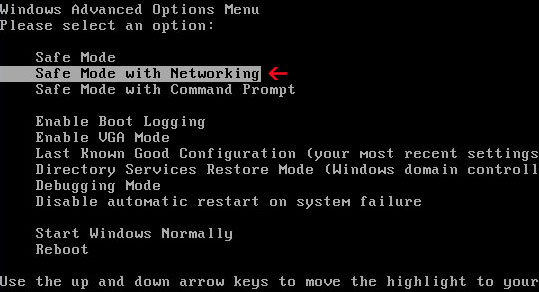
1. Reboot your computer is "Safe Mode with Networking". As the computer is booting tap the "F8 key" continuously which should bring up the "Windows Advanced Options Menu" as shown below. Use your arrow keys to move to "Safe Mode with Networking" and press Enter key. Read more detailed instructions here: http://www.computerhope.com/issues/chsafe.htm


NOTE: Login as the same user you were previously logged in with in the normal Windows mode.

2. Download free anti-malware software from the list below and run a full system scan.
  • MalwareBytes Anti-malware
  • SUPERAntispyware
  • Spybot S&D
  • Hitman Pro 3.5
NOTE: in some cases the rogue program may block anti-malware software. Before saving the selected program onto your computer, you may have to rename the installer to iexplore.exe or winlogon.exe With all of these tools, if running Windows 7 or Vista they MUST be run as administrator. Launch the program and follow the prompts. Don't forget to update the installed program before scanning.

3. New threats appear every day. In order to protect your PC from such (new) infections we strongly recommend you to use ESET Smart Security.


Associated Total Protect files and registry values:

Files:

Windows XP
  • C:\Documents and Settings\[UserName]\Application Data\RtlDriver32.exe
Windows Vista/7
  • C:\Users\[UserName]\AppData\Roaming\RtlDriver32.exe
Registry values:
  • HKEY_CURRENT_USER\Software\Microsoft\Windows\CurrentVersion\Run "[SET OF RANDOM CHARACTERS].exe"
Share this information with other people:
Read More
Posted in Rogue programs | No comments

Wednesday, 20 July 2011

How to Remove Zentom System Guard (Uninstall Guide)

Posted on 10:51 by Unknown
Zentom System Guard is a rogue anti-virus program that tries to trick users into paying for the program to remove fictitious virus threats. It's a re-branded version of Antimalware Doctor. The rogue application claims that it has detected viruses on your computer. It displays fake security warnings to scare you into thinking that your computer is infected with malicious software. Do not, under any circumstances, pay for such bogus software. This type of malicious software is very annoying and we totally understand how how frustrating it can be. However, it's worth mentioning that it can't delete your files so you shouldn't worry about that. If you think or confirm that your computer is infected with this fake anti-virus application, scan your computer with legitimate anti-malware software. To remove Zentom System Guard from your computer, please follow the steps in the removal guide below.


Zentom System Guard video:


There are a number of ways that Zentom System Guard gets on your computer, but usually users have no clue as to how they got it. The problem is that rogue security software can appear on your computer without a warning but most of the time cyber crooks use social engineering to trick you into installing their malicious software. For example, this time cyber crooks use fake pop-up window called "System Security Pack Upgrade" that looks just like the legitimate Automatic Windows update screen to trick you into installing Zentom System Guard.

System Security Pack 2010.78.932 (Zentom System Guard Upgrade; KB921472)


Cyber crooks cal also use fake online virus scanners, drive-by-downloads fake codecs and other social engineering tricks. Once installed, Zentom System Guard completes a fake system scan and reports numerous non-existent infections on your computer. Here are some of the fake security alerts you may see when your computer gets infected with Zentom System Guard.


Zentom System Guard - Hacker attack detected
Your computer is subjected to hacker attack. Zentom System Guard has detected that somebody is trying to transfer Your private data via internet. We strongly recommend you to block attack immediately.

Protection Center Alert
To help protect your computer, Zentom System Guard has blocked some features of this program Zentom System Guard has detected unauthorized activity, but unfortunately trial version cannot remove viruses, keyloggers and other treats. Your personal data under serious risk. It is strongly recommended to register Your copy of Zentom System Guard and prevent intrusion for future.
Do You want to block this suspicious software?
Name: Trojan.Win32.Autoit.agg
Alert level: High
Description: It is highly recommended to remove this threat from your PC
If you have accidentally purchased this rogue antivirus program, please contact your credit card company and dispute the charges. The please follow the removal instructions below to remove Zentom System Guard and associated malware from your computer. If you have any questions or need help removing this malware, please leave a comment below. Good luck and be safe online!

Additionally, you can activate the rogue program by entering this registration code MTk4-NzE1-NTYx-NTUw as shown in the image below.


Once this is done, you are free to install anti-malware software and remove the rogue anti-virus program from your computer properly.


Zentom System Guard removal instructions:

1. Download free anti-malware software from the list below and run a full system scan.
  • MalwareBytes Anti-malware
  • SUPERAntispyware
  • Spybot S&D
  • Hitman Pro 3.5
NOTE: in some cases the rogue program may block anti-malware software. Before saving the selected program onto your computer, you may have to rename the installer to iexplore.exe or winlogon.exe With all of these tools, if running Windows 7 or Vista they MUST be run as administrator. Launch the program and follow the prompts. Don't forget to update the installed program before scanning.

If you can't download it, please reboot your computer is "Safe Mode with Networking". As the computer is booting tap the "F8 key" continuously which should bring up the "Windows Advanced Options Menu" as shown below. Use your arrow keys to move to "Safe Mode with Networking" and press Enter key. Open Internet Explorer and download STOPzilla. Once finished, go back into Normal Mode and run it. That's It!

Read more detailed instructions here: http://www.computerhope.com/issues/chsafe.htm


NOTE: Login as the same user you were previously logged in with in the normal Windows mode.


Associated Zentom System Guard files and registry values:

Files:


Windows XP
  • C:\Documents and Settings\[UserName]\Application Data\[SET OF RANDOM CHARACTERS]
  • C:\Documents and Settings\[UserName]\Application Data\[SET OF RANDOM CHARACTERS]\[SET OF RANDOM CHARACTERS].exe
  • C:\Documents and Settings\[UserName]\Application Data\[SET OF RANDOM CHARACTERS]\lsrslt.ini
  • C:\Documents and Settings\[UserName]\Application Data\[SET OF RANDOM CHARACTERS]\local.ini
  • C:\Documents and Settings\[UserName]\Application Data\[SET OF RANDOM CHARACTERS]\hookdll.dll
  • C:\Documents and Settings\[UserName]\Application Data\[SET OF RANDOM CHARACTERS]\enemies-names.txt
  • C:\Documents and Settings\[UserName]\Start Menu\Programs\Zentom System Guard\
  • C:\Documents and Settings\[UserName]\Start Menu\Programs\Startup\Zentom System Guard.lnk
  • C:\Documents and Settings\[UserName]\Start Menu\Programs\Zentom System Guard\Uninstall.lnk
  • C:\Documents and Settings\[UserName]\Start Menu\Programs\Zentom System Guard\Zentom System Guard.lnk
  • C:\Documents and Settings\[UserName]\Desktop\Zentom System Guard.lnk
Windows Vista/7
  • C:\Users\[UserName]\AppData\Roaming\[SET OF RANDOM CHARACTERS]
  • C:\Users\[UserName]\AppData\Roaming\[SET OF RANDOM CHARACTERS]\[SET OF RANDOM CHARACTERS].exe
  • C:\Users\[UserName]\AppData\Roaming\[SET OF RANDOM CHARACTERS]\lsrslt.ini
  • C:\Users\[UserName]\AppData\Roaming\[SET OF RANDOM CHARACTERS]\local.ini
  • C:\Users\[UserName]\AppData\Roaming\[SET OF RANDOM CHARACTERS]\hookdll.dll
  • C:\Users\[UserName]\AppData\Roaming\[SET OF RANDOM CHARACTERS]\enemies-names.txt
  • C:\Users\[UserName]\AppData\Roaming\Microsoft\Windows\Start Menu\Programs\Zentom System Guard\
  • C:\Users\[UserName]\AppData\Roaming\Microsoft\Windows\Start Menu\Programs\Startup\Zentom System Guard.lnk
  • C:\Users\[UserName]\AppData\Roaming\Microsoft\Windows\Start Menu\Programs\Zentom System Guard\Uninstall.lnk
  • C:\Users\[UserName]\AppData\Roaming\Microsoft\Windows\Start Menu\Programs\Zentom System Guard\Zentom System Guard.lnk
  • C:\Users\[UserName]\Desktop\Zentom System Guard.lnk
Registry values:
  • HKEY_CURRENT_USER\Software\Microsoft\Windows\CurrentVersion\Uninstall\Zentom System Guard
  • HKEY_CURRENT_USER\Software\ZentomSystemGuard
  • HKEY_CURRENT_USER\Software\Microsoft\Windows\CurrentVersion\Run "[SET OF RANDOM CHARACTERS].exe"
Share this information with other people:
Read More
Posted in Rogue programs | No comments

Tuesday, 19 July 2011

Remove www5.antimalware-lab.com (Uninstall Guide)

Posted on 11:25 by Unknown
www5.antimalware-lab.com is a misleading website related to scareware called Anti-Malware Lab. It provides a variety of misleading reviews, awards, comparisons and other information about rogue anti-virus software. www5.antimalware-lab.com is also a payment page of the rogue AV product. If you are being redirected to that website then your computer is probably infected with Anti-Malware Lab scarware or a Trojan horse that advertises this rogue AV. Anyway, you should run legitimate anti-malware software and remove malware from your computer. For more information, please read how to remove Anti-Malware Lab. Good luck and be safe online!

Here's a screen shot of what www5.antimalware-lab.com looks like:


Share the knowledge:
Read More
Posted in Malicious websites | No comments

Sunday, 17 July 2011

Remove Jucheck.exe Trojan (Uninstall Guide)

Posted on 07:46 by Unknown
Jucheck.exe is the Java update verification process which notifies users about new updates available for the Java software installed on your computer. Unfortunately, it's not uncommon for malicious software authors to use well known and legit file names to confuse users and in some cases to avoid detection. We previously wrote about a Trojan horse masquerading as msiexec.exe. There's also an IRC backdoor Trojan which uses another legitimate file name jusched.exe to trick users into running malicious code on their computers. So, how do you determine whether it's a virus or a legitimate application?

First of all, you should verify that the file is digitally signed and verified by the distributor of software. Jucheck.exe should be digitally signed by Sun Microsystems, Inc., but if the publisher is Unknown then it's probably some kind of malware.

Secondly, you should verify the file location. Legitimate Java software updater runs from C:\Program Files\Java\jre1.6.0_01\bin\jucheck.exe. This part \jre1.6.0_01\ may vary depending on the version of the Java software installed on your computer. Malicious software usually runs from Windows temporary folder (%Temp%) or Windows system folder (%Windir%). If the jucheck.exe runs from C:\Users\AppData\Local\Temp\jucheck.exe folder or from C:\Windows\jucheck.exe then you shouldn't allow it to run.

Finally, you can upload the suspicious file to VirusTotal, Jotti or VirScan to determine whether it's malicious or not. If the file is infected, you should get similar results: http://file.virscan.org/report/f1c42499897ee70aaa40cc4f1619571c.html

If you got the User Account Control (UAC) message about jucheck.exe from Unknown publisher asking you to make changes to your computer, please click No and scan your computer with legitimate anti-malware software.


Download recommended anti-malware software and run a full system scan to remove this Trojan from your computer.


NOTE: in some cases the rogue program may block anti-malware software. Before saving the selected program onto your computer, you may have to rename the installer to iexplore.exe or winlogon.exe With all of these tools, if running Windows 7 or Vista they MUST be run as administrator. Launch the program and follow the prompts. Don't forget to update the installed program before scanning.

If you need help removing the jucheck.exe malware, please a comment below. Good luck and be safe online!
Read More
Posted in Trojans | No comments

Saturday, 16 July 2011

How to Remove BlueFlare Antivirus (Uninstall Guide)

Posted on 13:02 by Unknown
We have been receiving complaints about a program called BlueFlare Antivirus for a couple of days. From what we've heard about this application, is rogue anti-virus software. It displays misleading security alerts and false scan results in an effort to convince users into paying for a full version of the program. It may configure web browsers to use a proxy server and blocks system utilities, according to the system logs received from our readers. BlueFlare Anti-virus runs from %Application Data% folder. Unfortunately, we couldn't find a sample of this application or anything else related to BlueFlare Antivirus and it certainly raises our suspicion of fraud. If you are experiencing BlueFlare Antivirus pop-ups or security center alerts about this program, please scan your computer with legitimate anti-malware software. We are currently investigating this threat and will provide more information as it becomes available.

Update, 1:55 a.m. PDT, 23/07: BlueFlare Antivirus is indeed a rogue anti-virus application. To remove this fraudware, please follow the removal instructions below. Good luck and be safe online!


Fake BlueFlare Antivirus security alerts:


Security warning:
The file C:\WINDOWS\regedit.exe is infected.
Running of application is impossible.


Additionally, you can activate the rogue program by entering this registration code: DB038748-B4659586-4A1071AF-32E768CD-36005B1B-F4520642-3000BF2A-04FC910B. Once this is done, you are free to install anti-malware software and remove the rogue anti-virus program from your computer properly.


BlueFlare Antivirus removal instructions:

1. Go to Start → Run or press WinKey+R. Type in "command" and press Enter key.


2. In the command prompt window type "notepad". Notepad will come up.


3. Copy all the text in blue color below and paste into Notepad.

Windows Registry Editor Version 5.00
[HKEY_CLASSES_ROOT\exefile\shell\open\command]
@="\"%1\" %*"

4. Save file as regfix.reg to your Desktop. NOTE: (Save as type: All files)


regfix.reg is available for download here, in case you can't make your own or it doesn't work.

5. Double-click on regfix.reg file to run it. Click "Yes" for Registry Editor prompt window. Then click OK.
6. Download free anti-malware software from the list below and run a full system scan.
  • MalwareBytes Anti-malware
  • SUPERAntispyware
  • Spybot S&D
  • Hitman Pro 3.5
NOTE: in some cases the rogue program may block anti-malware software. Before saving the selected program onto your computer, you may have to rename the installer to iexplore.exe, explorer.exe or winlogon.exe With all of these tools, if running Windows 7 or Vista they MUST be run as administrator. Launch the program and follow the prompts. Don't forget to update the installed program before scanning.

7. New threats appear every day. In order to protect your PC from such (new) infections we strongly recommend you to use ESET Smart Security.


Associated BlueFlare Antivirus files and registry values:

Files:

Windows XP:
  • C:\Documents and Settings\[UserName]\Application Data\BlueFlare Antivirus\BlueFlare Antivirus.exe
Windows Vista/7:
  • C:\Users\[UserName]\AppData\Roaming\BlueFlare Antivirus\BlueFlare Antivirus.exe
Registry values:
  • HKEY_LOCAL_MACHINE\Software\AWM Antivirus\BlueFlare Antivirus
  • HKEY_LOCAL_MACHINE\Software\Microsoft\Windows\CurrentVersion\Uninstall\BlueFlare Antivirus
  • HKEY_CURRENT_USER\Software\Microsoft\Windows\CurrentVersion\Run "BlueFlare Antivirus.exe"
Share this information with other people:
Read More
Posted in Rogue programs | No comments

Friday, 15 July 2011

What Is Cloud Computing? Defining the Cloud

Posted on 12:25 by Unknown
The term of “cloud computing” is rather new, although it has been nearly a decade since cloud computing services were first used. The fact is that only few years ago the potential of this area was realized and suitable name found by IT specialists. Nevertheless this expression still says nothing for a decent user. The easiest way to understand the essence of this powerful conception is to explain both of the words separately. For a long time, the word “cloud” has been used as the synonym of Internet, especially in flowcharts or diagrams. Meanwhile, the word “computing” is usually associated with all kind of activities on computer. By coupling these two terms together we get a cloud computing, which, according to previous explanations, stands for computing through internet and is very close to actual meaning.

In general, the essence of cloud computing is the way of keeping information. In traditional computing, we store all data and programs on our PCs and normally we can access them only through the same computer unless you allow remote access. Whereas in cloud computing all necessary data and programs are stored in the service provider’s information centre and thereof they can be accessed from any PC with an Internet connection. In many cases you don’t even have to download and install any applications to your computer, because they are already in the “cloud”.


The illustration of cloud computing

At this point it is very important to understand the differences between classic client-service model and cloud computing as these concepts may look similar to someone. There are three distinct characteristics which should be discussed in this case: elasticity, flexibility and maintenance. For example, when you buy a traditional web hosting service, all the details are defined in advance: the amount of space for your website bandwidth size, the number of databases you are able to configure and so on. However, when you order a similar service from the “cloud”, you can use as much or as little space and resources as you need at that moment – it is elastic. Moreover, you pay only for the actual consumption of services (it is like on demand self-service) and you don’t have to care neither about maintenance nor about tools for using it – the service is fully managed by the provider. All you need is computer with sufficient Internet connection.

In addition, the cloud computing model is broadly divided into two deployment models (private or public) and three service models: Infrastructure-as-a-Service (IaaS), Platform-as-a-Service (PaaS) and Software-as-a-Service (SaaS).
A private cloud supplies hosted services to particular organization or limited number of people and can be managed by them or a third party. A public cloud is available to anyone on the Internet or a large industry group and is owned by a service provider (for example, Amazon Web Services). Sometimes, when an organization, which sells cloud services, creates its own private cloud from public cloud resources, the result is called a virtual private cloud. However, despite of the deployment model, the goal of cloud computing is still the same – to ensure convenient and secure access to massive computing resources and endless scalability.

Infrastructure-as-a-Service (IaaS), as the name implies, provides infrastructure or actual servers and storage to a buyer. This means that consumers are able to use as much capacity as they need, however the responsibility for installing operating system and all the required applications should be taken by themselves. One of the best examples of this cloud model is Amazon Web Services (AWS), which allows accessing and configuring their virtual servers and storage. IaaS supports the PaaS and SaaS layers. This provides a high degree of autonomy but increases complexity.

Platform-as-a-Service (PaaS) provides the same services like Infrastructure-as-a-Service (IaaS), but in addition installs the platforms on top of the hardware and takes care of maintaining them. Please note that the main difference between IaaS and PaaS is the amount of control over the system available to users of the services. IaaS provides total control, PaaS typically provides no control. This enables consumers to create or acquire applications by using software and product development tools over the Internet. However, it should be taken into account, that question of standards for interoperability or data portability in the cloud is still open, and therefore some cloud service providers may not allow moving created software out of his platform. The examples of PaaS are GoogleApps and Force.com.

Software-as-a-Service (SaaS) is similar to Platform-as-a-Service (PaaS), but has even more limitations. SaaS provides access to various kinds of software managed by vendor and interacts with the consumer though a front-end portal. Of course, the software may intern according to the company needs or activities and can be reached from anywhere in the world simply by Internet. For this reason, SaaS is a very broad market with many capabilities. Some of the best known examples of SaaS are Web-based emails (Gmail, Yahoo Mail, Hotmail, etc.) and Google Docs.

Although these three service models of cloud computing, which were described above, are still relevant, some experts presumes that very soon everything will be offered as a single package with the possibility to choose what end-user really needs. Whether these predictions will come true or not, one thing can be said for sure – a cloud computing will play more and more important role in meeting the needs of organizations and private customers.
Read More
Posted in Cloud Computing | No comments
Newer Posts Older Posts Home
Subscribe to: Posts (Atom)

Popular Posts

  • Remove Viruses Located in the $Recycle.Bin Folder (Uninstall Guide)
    The $Recycle.Bin folder is a genuine Windows folder. It is part of the file system. It is there to give you a chance to undelete a file when...
  • Remove Ask Search and Ask Toolbar (Uninstall Guide)
    Ask Search and Ask Toolbar are very often incorrectly classified as virus/spyware that may cause search redirects. The majority of us pref...
  • Smartphone Security: Using Your Mobile Phone Safely
    Smartphone is like a little copy of your computer with lots of personal information: photos, text messages, access to e-mail account and oth...
  • Facebook Security and Privacy Best Practices
    Facebook is the most popular social networking site. Nearly all of my friends have Facebook accounts. They log on to Facebook at least a cou...
  • Fake avast! Antivirus: Avast-antivirus-francais.exe
    Cyber-criminals are attempting to benefit from unexperienced web users who are looking for anti-virus software. We found a couple of mislead...
  • How to Remove Easy Scan (Uninstall Guide)
    Easy Scan is a rogue application that pretends to be legitimate software, in this case registry cleaner and hard drive optimization program...
  • Remove Jucheck.exe Trojan (Uninstall Guide)
    Jucheck.exe is the Java update verification process which notifies users about new updates available for the Java software installed on you...
  • Antivired.com and other Antivirus Monitor Related Domains
    Just a short note about several malicious domains related to the Antivirus Monitor fraud. This rogue anti-virus program reports non-existent...
  • Show Hidden Files and Folders in Windows
    By default Microsoft Windows hides important files from being seen with Windows Explorer in order to protect these files from being modified...
  • Boxore Adware (Uninstall Guide)
    Today we came across another adware application called Boxore. It's distributed the old-fashioned way: people search for free online mov...

Categories

  • Adware
  • Answers
  • Antivirus software
  • Browser Hijackers
  • Cloud Computing
  • Fake Alerts
  • Giveaways
  • Hoax
  • How-To
  • IaaS
  • Internet
  • Malicious websites
  • Malware
  • PaaS
  • Parental Controls
  • Passwords
  • Phishing
  • Process Information
  • Ransomware
  • Rogue programs
  • Rootkits
  • SaaS
  • Security Advisories
  • Spam
  • Spyware
  • Trojans
  • Viruses
  • Web Browsers
  • Worms

Blog Archive

  • ▼  2013 (173)
    • ▼  December (6)
      • Squirrel Web Removal Guide
      • What is levelqualitywatcher64.exe and how to remov...
      • What is levelqualitywatcher32.exe and how to remov...
      • What is adpeakproxy.exe and how to remove it?
      • How to remove ScorpionSaver adware (Uninstall Guide)
      • Remove Level Quality Watcher, removal guide
    • ►  November (13)
    • ►  October (11)
    • ►  September (20)
    • ►  August (4)
    • ►  July (17)
    • ►  June (31)
    • ►  May (25)
    • ►  April (15)
    • ►  March (17)
    • ►  February (7)
    • ►  January (7)
  • ►  2012 (86)
    • ►  November (2)
    • ►  October (4)
    • ►  September (6)
    • ►  August (6)
    • ►  July (11)
    • ►  June (1)
    • ►  May (5)
    • ►  April (7)
    • ►  March (7)
    • ►  February (17)
    • ►  January (20)
  • ►  2011 (239)
    • ►  December (8)
    • ►  November (18)
    • ►  October (21)
    • ►  September (24)
    • ►  August (28)
    • ►  July (32)
    • ►  June (16)
    • ►  May (23)
    • ►  April (15)
    • ►  March (16)
    • ►  February (9)
    • ►  January (29)
  • ►  2010 (2)
    • ►  December (2)
Powered by Blogger.

About Me

Unknown
View my complete profile