Malware Removal Instructions

  • Subscribe to our RSS feed.
  • Twitter
  • StumbleUpon
  • Reddit
  • Facebook
  • Digg

Saturday, 8 June 2013

Fixing ievbz.com redirection/hijacking problem

Posted on 11:17 by Unknown
In this article we’re going to take a look at ievbz.com redirection problem and find out how you can tell if your browser has been hijacked, how it will affect your computer and what you can do to prevent yourself from becoming a victim.

If you are occasionally redirected to a site that has the suffix ievbz.com then your web browser has been hijacked. Browser hijacking is a type of internet fraud. It’s another unwelcome addition to the long list of cyber scams along with Trojan horses, spyware, malware, worms, fake anti-virus software and police themed ransomware. Browser hijacking is just as the name suggests – it means someone has taken over your internet browser without your permission or knowledge. Put simply it is cyber kidnapping. Unlike a regular virus, however, a hijacker will be able to access your browser through a program that you yourself have intentionally installed on your PC. In most cases you will be completely unaware that the program you’ve downloaded – be it a game, a software update or even an anti-virus program – has been bundled with a hijacking program and even some of the most reputable programs can come with a piece of hijacking software attached.


There are a number of ways to tell if you’ve fallen victim to a browser hijacker so stay vigilant and if you experience any of the following you might need to take further action to rid yourself of the hijacker. In this case, when clicking on links and instead of going to the right site, it will adding ievbz. For example, if you Google something and click on a link, you will be redirected to google.ievbz.com.

In some cases a browser hijacker will have taken control of your browser with the intention of directing you to websites that you may not particularly want to go to. These sites maybe as something as innocent as an online clothing store – or it could be a site containing explicit adult content of a very graphic nature. Whichever it is, basically the hijacker is manipulating you into visiting a site you probably would not have visited. As you can see, at the time I was investigating this malware it redirected me to fake surveys.

As mentioned above hijacking programs can be bundled with something you are downloading and installing but some are also attached to plug-ins that you’ve added to your browser – most commonly toolbars plus other freeware, for instance DownloadTerms which was the culprit of ievbz.com redirection problem.

As usual, prevention is better than cure and browser hijackers can be a pain to remove so take as many steps as possible to prevent it from happening in the first place. Most importantly make sure you have up to date, reputable anti-virus and anti-malware programs installed. Make sure they are enabled and run regularly. Anti-virus and anti-malware programs can differ and they cover different aspects of security so it makes sense to have more than just your standard anti-virus software installed. Block pop-ups from displaying. Whether you use Internet Explorer, Chrome or Firefox you’ll be able to change your PC settings. You will then be notified if a website wants you to enable pop-ups and you can choose to do so only if you trust the site. Check your add-ons and plug-ins and delete any that you’re not using or are not essential.

Written by Michael Kaur, http://deletemalware.blogspot.com


ievbz.com removal instructions:

1. First of all, download recommended anti-malware software and run a full system scan. It will detect and remove this infection from your computer. You may then follow the manual removal instructions below to remove the leftover traces of this infection. Hopefully you won't have to do that.


2. Remove ievbz.com related prograsm from your computer using the Add/Remove Programs control panel (Windows XP) or Uninstall a program control panel (Windows 7 and Windows 8).

Go to the Start Menu. Select Control Panel → Add/Remove Programs.
If you are using Windows Vista or Windows 7, select Control Panel → Uninstall a Program.


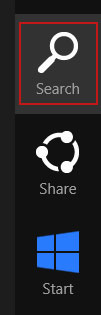
If you are using Windows 8, simply drag your mouse pointer to the right edge of the screen, select Search from the list and search for "control panel".


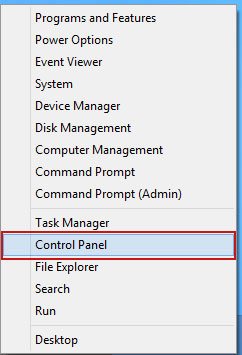
Or you can right-click on a bottom left hot corner (formerly known as the Start button) and select Control panel from there.


3. When the Add/Remove Programs or the Uninstall a Program screen is displayed, scroll through the list of currently installed programs and remove the following:
  • DefaultTab
  • DownloadTerms
  • LessTabs
  • TidyNetwork.com
  • WebCake
  • and any other recently installed application
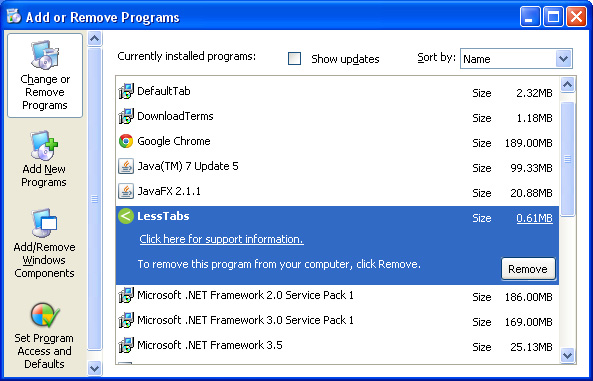

Simply select each application and click Remove. If you are using Windows Vista, Windows 7 or Windows 8, click Uninstall up near the top of that window. When you're done, please close the Control Panel screen.


Remove ievbz.com from Google Chrome:

1. Click on Chrome menu button. Go to Tools → Extensions.
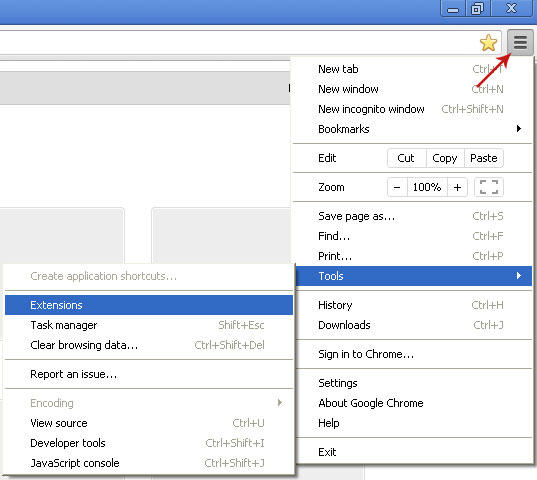


2. Click on the trashcan icon to remove the following extensions:


Remove ievbz.com from Mozilla Firefox:

1. Open Mozilla Firefox. Go to Tools → Add-ons.
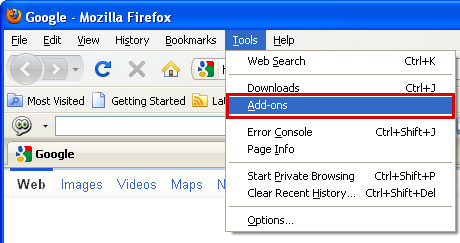


2. Select Extensions. Click Remove button to the following extensions. If you can't find the Remove button, then simply click on the Disable button.


Remove ievbz.com from Internet Explorer:

1. Open Internet Explorer. Go to Tools → Manage Add-ons. If you have the latest version, simply click on the Settings button.


2. Select Toolbars and Extensions. Click Remove/Disable button to remove the browser add-ons listed above.

Email ThisBlogThis!Share to XShare to FacebookShare to Pinterest
Posted in Browser Hijackers | No comments
Newer Post Older Post Home

0 comments:

Post a Comment

Subscribe to: Post Comments (Atom)

Popular Posts

  • Remove Ask Search and Ask Toolbar (Uninstall Guide)
    Ask Search and Ask Toolbar are very often incorrectly classified as virus/spyware that may cause search redirects. The majority of us pref...
  • Facebook Security and Privacy Best Practices
    Facebook is the most popular social networking site. Nearly all of my friends have Facebook accounts. They log on to Facebook at least a cou...
  • What is wrtc.exe and how to remove it?
    wrtc.exe - by Perion Network Ltd. What is wrtc.exe? wrtc.exe is a part of IncrediMail software, digitally signed by Perion Network Ltd. This...
  • Smartphone Security: Using Your Mobile Phone Safely
    Smartphone is like a little copy of your computer with lots of personal information: photos, text messages, access to e-mail account and oth...
  • Remove ShopperReports (Uninstall Guide)
    ShopperReports is defined as adware or a potentially unwanted program that displays marketing related results in a side pane of the browser...
  • Antispyis.com and other Antivirus Scan related domains
    New additions of misleading websites which promote a rogue security application called Antivirus Scan. antispyis.com afantispy.net softwaree...
  • Trojan.MBRlock, Внимание! Ваш компьютер заблокирован
    Trojan.MBRlock is a very disturbing piece of malicious code which infects the master boot record (MBR) and prevents Windows from starting. ...
  • False Positive: Ikarus and Comodo detecting TDSSKiller as a Trojan horse
    This awkward moment when you realize that your favorite rootkit removal utility is detected as malware. I probably wouldn't even have no...
  • Antivired.com and other Antivirus Monitor Related Domains
    Just a short note about several malicious domains related to the Antivirus Monitor fraud. This rogue anti-virus program reports non-existent...
  • WebCake Adware Removal Guide
    If you’re reading this it is very likely that your computer is infected with WebCake adware which displays extremely obnoxious and intrusiv...

Categories

  • Adware
  • Answers
  • Antivirus software
  • Browser Hijackers
  • Cloud Computing
  • Fake Alerts
  • Giveaways
  • Hoax
  • How-To
  • IaaS
  • Internet
  • Malicious websites
  • Malware
  • PaaS
  • Parental Controls
  • Passwords
  • Phishing
  • Process Information
  • Ransomware
  • Rogue programs
  • Rootkits
  • SaaS
  • Security Advisories
  • Spam
  • Spyware
  • Trojans
  • Viruses
  • Web Browsers
  • Worms

Blog Archive

  • ▼  2013 (173)
    • ►  December (6)
    • ►  November (13)
    • ►  October (11)
    • ►  September (20)
    • ►  August (4)
    • ►  July (17)
    • ▼  June (31)
      • How to Remove DomaIQ, removal instructions
      • Remove bizcoaching.info, removal instructions
      • What is CltMngSvc.exe and how to remove it?
      • What is Search Assistant WebSearch 1.74 and how to...
      • What is Search Protect by conduit and how to remov...
      • What is IB Updater Service and how to remove it?
      • Remove vGrabber, removal instructions
      • Remove inksdata.com, removal instructions
      • How To Get Rid of the "FBI Your computer has been ...
      • PC Health Boost Review and Removal Instructions
      • Remove OtShot, removal instructions
      • What is Macromedia.exe and how to remove it?
      • Is it safe to use a VPN service to change IP? How ...
      • What is wrtc.exe and how to remove it?
      • What is DTUpdate.exe and how to remove it?
      • Remove "Value Apps" pop-up, removal instructions
      • Remove start.search.us.com homepage redirect (Unin...
      • Remove TR/ATRAPS.Gen2, removal instructions
      • How to remove 'TidyNetwork' adware virus from your...
      • What is stij.exe and how to remove it?
      • What is wscript.exe and how to remove it?
      • How to remove Luhe.Sirefef.A Trojan virus (Uninsta...
      • What is minerd.exe and how to remove it?
      • What is wssetup.exe and how to remove it?
      • Alert: Fake Google Chrome Update
      • Fixing ievbz.com redirection/hijacking problem
      • What is dmwu.exe and how to remove it?
      • WebCake Adware Removal Guide
      • Remove trustedoffer.com pop-ups and redirection (U...
      • Fake Flash Player Update Virus Removal
      • V9 Portal Site Removal Guide
    • ►  May (25)
    • ►  April (15)
    • ►  March (17)
    • ►  February (7)
    • ►  January (7)
  • ►  2012 (86)
    • ►  November (2)
    • ►  October (4)
    • ►  September (6)
    • ►  August (6)
    • ►  July (11)
    • ►  June (1)
    • ►  May (5)
    • ►  April (7)
    • ►  March (7)
    • ►  February (17)
    • ►  January (20)
  • ►  2011 (239)
    • ►  December (8)
    • ►  November (18)
    • ►  October (21)
    • ►  September (24)
    • ►  August (28)
    • ►  July (32)
    • ►  June (16)
    • ►  May (23)
    • ►  April (15)
    • ►  March (16)
    • ►  February (9)
    • ►  January (29)
  • ►  2010 (2)
    • ►  December (2)
Powered by Blogger.

About Me

Unknown
View my complete profile